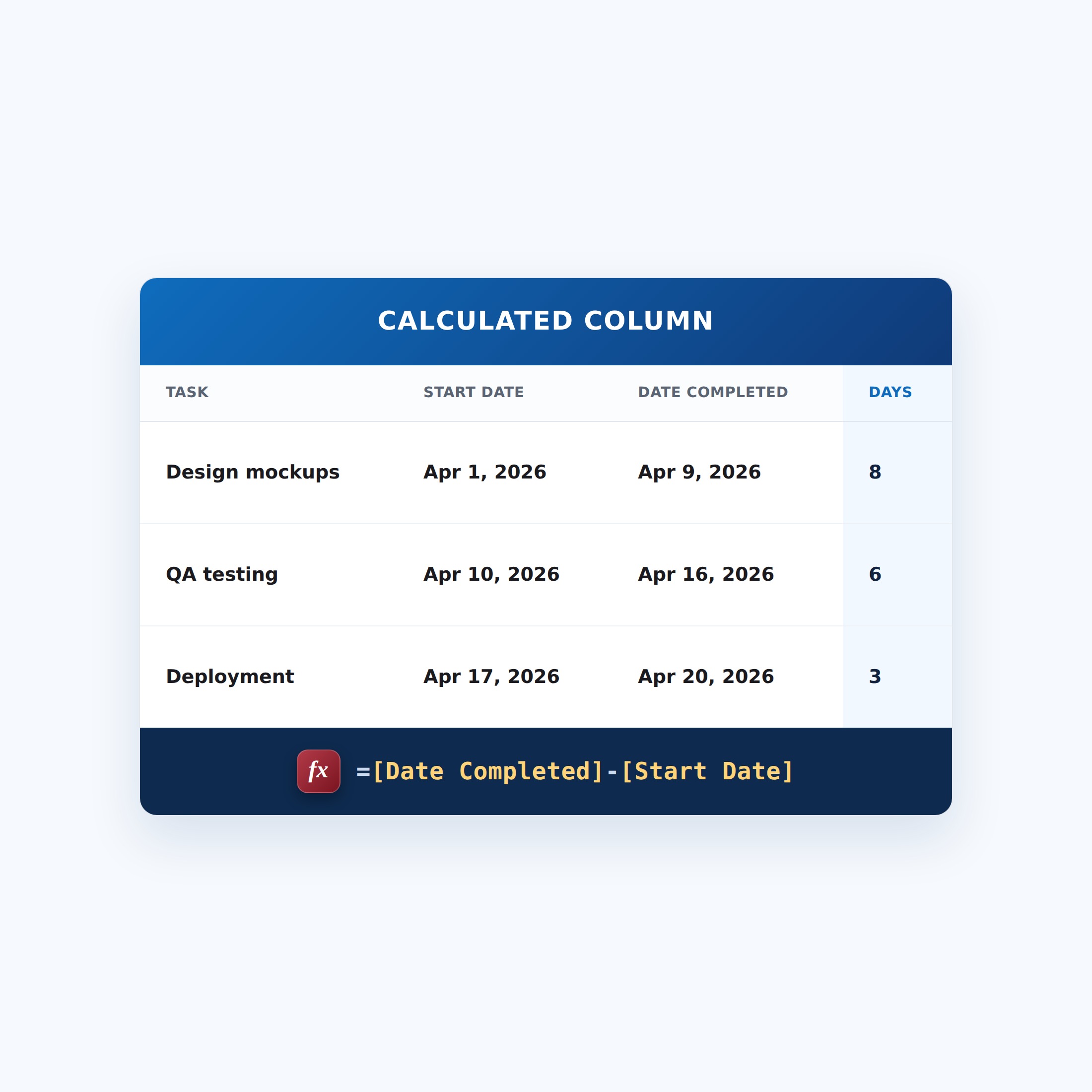
Days to Complete a Task
This calculated column uses a SharePoint formula to count the elapsed days between a task's start and completion dates. Because it lives in a calculated column, SharePoint fills the value in for every item automatically - no custom development and nothing for your users to type.


How It Works
- What it does: Subtracts the Start Date from the Date Completed to show how many days a task took.
- What you get: A whole number of days – started 3/1, completed 3/8 shows 7.
- If a value is missing: If either date is blank (for example the task isn’t finished), the column shows a blank or an error instead of a number.
Common Use Cases
- Cycle-time reporting on tasks or tickets
- Service-level tracking from open to close
- Onboarding duration per new hire
- Turnaround time on requests or approvals
Details
- Formula Type: Calculated Column
- Formula Category: Dates & Time
Required Columns
| Display name | Column type |
|---|---|
| Date Completed | Date and Time |
| Start Date | Date and Time |
| Days to Complete a Task | Calculated |
Prerequisites
- Create the columns the formula reads: Date Completed and Start Date
- Add or edit a few items so there is data for the formula to work with
How to Apply the Formula
- Add a column, choose More…, then select Calculated (calculation based on other columns)
- Set the data type returned from this formula to Number
- Paste the formula below into the Formula box
- Click OK to create the column
Formula (Copy and Paste)
=[Date Completed]-[Start Date]Common Questions About Days to Complete a Task Formula
What does this formula do?
Elapsed days between start and finish. It lives in a calculated column, so SharePoint fills the value in automatically for every item.
Which columns do I need to set this up?
You need: Date Completed (Date), Start Date (Date). The formula reads these to produce its result.
Can I change the formula for my own columns?
Yes. Swap the column names in brackets for your own, and adjust any numbers or text.
If LookBook 365 is code-free and out-of-the-box, why does this example use a formula?
A SharePoint formula is native, declarative configuration, not custom development. It only works with the item’s own fields and simple logic – it cannot run scripts, reach external services, or change other data, and nothing is deployed to your tenant. It keeps working through Microsoft updates. If you would rather not set this up yourself, this is exactly the kind of thing I configure for clients.