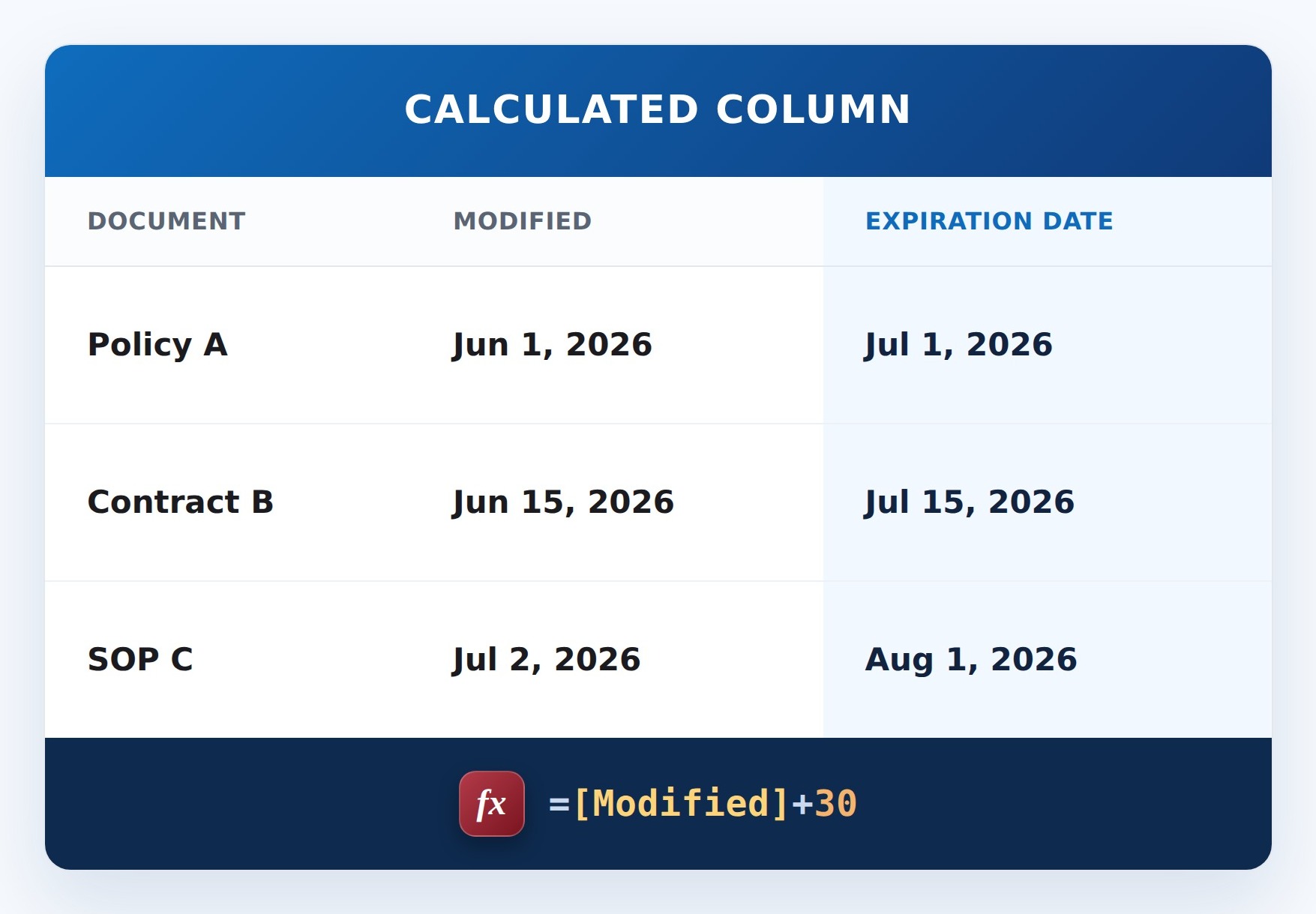
Expires 30 Days After Last Edit


How It Works
- What it does: Sets an expiration date 30 days after the item was last modified.
- What you get: A date – an item modified 3/1 shows 3/31; edit the item and it recalculates from the new Modified date.
- If a value is missing: Modified is always set by SharePoint, so this fills in for every item automatically.
Common Use Cases
- Policy and SOP review dates – resurface documents 30 days after their last update
- Contract, NDA, and certificate follow-up reminders
- Temporary access, waiver, or permission expirations
- Quote and estimate validity windows
- Content and marketing-asset freshness checks
- Support case or ticket auto-expiry
Details
- Formula Type: Calculated Column
- Formula Category: Dates & Time
Required Columns
| Display name | Column type |
|---|---|
| Expires 30 Days After Last Edit | Calculated |
Prerequisites
- Add or edit a few items so there is data for the formula to work with
How to Apply the Formula
- Add a column, choose More…, then select Calculated (calculation based on other columns)
- Set the data type returned from this formula to Date and Time
- Paste the formula below into the Formula box
- Click OK to create the column
Formula
=[Modified]+30Common Questions About Expires 30 Days After Last Edit Formula
What does the =[Modified]+30 formula do?
It takes the built-in Modified date of each item and adds 30 days to it, producing an Expiration Date automatically. Because it lives in a calculated column, SharePoint fills it in for every item without anyone typing a date.
Does the expiration date update by itself?
It is tied to the Modified date, not to today. Each time a document is edited, Modified updates and the Expiration Date recalculates to 30 days after that latest change. It does not tick down day by day on its own, which is exactly what you want for a review-after-last-change date.
Can I use a different number of days?
Yes. Change the 30 to any number of days you need – for example =[Modified]+90 for a 90-day window. You can also calculate from a different date column, such as =[Created]+30.
Why not just use TODAY()+30?
Calculated columns do not support the TODAY() function, so that formula will not save. TODAY() also would not anchor the date to the document. Tying the expiration to Modified or Created is the reliable, out-of-the-box approach.
What column type should the calculated column return?
Set the returned data type to Date and Time, and pick Date Only for a clean look. That way the Expiration Date sorts, filters, and groups like any other date column.
If LookBook 365 is code-free and out-of-the-box, why does this example use a formula?
A calculated-column formula is native SharePoint configuration, not custom development. It only does simple arithmetic on the item’s own fields – it cannot run scripts, reach external services, or change other data, and nothing is deployed to your tenant. It keeps working through Microsoft updates. If you would rather not set up formulas yourself, this is exactly the kind of thing I configure for clients.