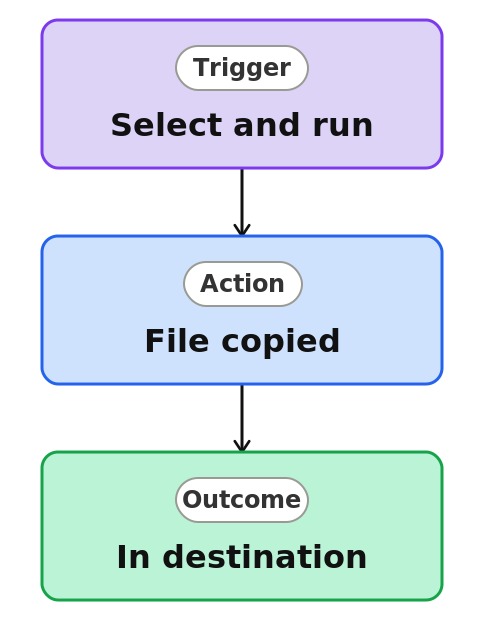
Copy a Document (Quick Step)


Overview
- Copies a selected file or folder to another library in one click
- Configured once with a fixed destination, then reused by the team
- Ideal for publishing approved documents to another site
- Leaves the original in place while placing a copy elsewhere
- Works on a single file or several selected at once
- A native SharePoint feature, with no code and no Power Automate
Common Use Cases
- Publishing approved policies to an employee-facing library
- Copying finished templates into a shared library
- Distributing a document to a communication site
- Sharing a file to another department’s library
- Seeding a new library from an existing one
- Publishing from a restricted workspace to a public site
Common Questions About Copying a Document with a Quick Step
If LookBook 365 is code-free and out-of-the-box, why does it include this workflow example?
A Quick Step is a native SharePoint action you set up once from the Automate menu, then run in a single click – no code and nothing to build. It performs the action for you inside your Microsoft 365 tenant, turning a few repetitive clicks into one.
Is this available on lists?
No. Move and Copy Quick Steps are document-library only, since they act on files.
Where is it set up?
From the library under the three dots, then Automate, then Quick steps, then Create a quick step, and choose Copy file or folder.
Does copying keep the original?
Yes. Copy places a duplicate in the destination and leaves the original where it is – unlike Move, which relocates it.
Who can run it?
Anyone with edit rights on the source library. You also need permission to add files to the destination.
Can you set this up and train my team?
Absolutely. I design the list or library, set up the automation, and show your team how to manage it. When your process grows beyond this, I can extend it into a full Power Automate flow that fits how you actually work.