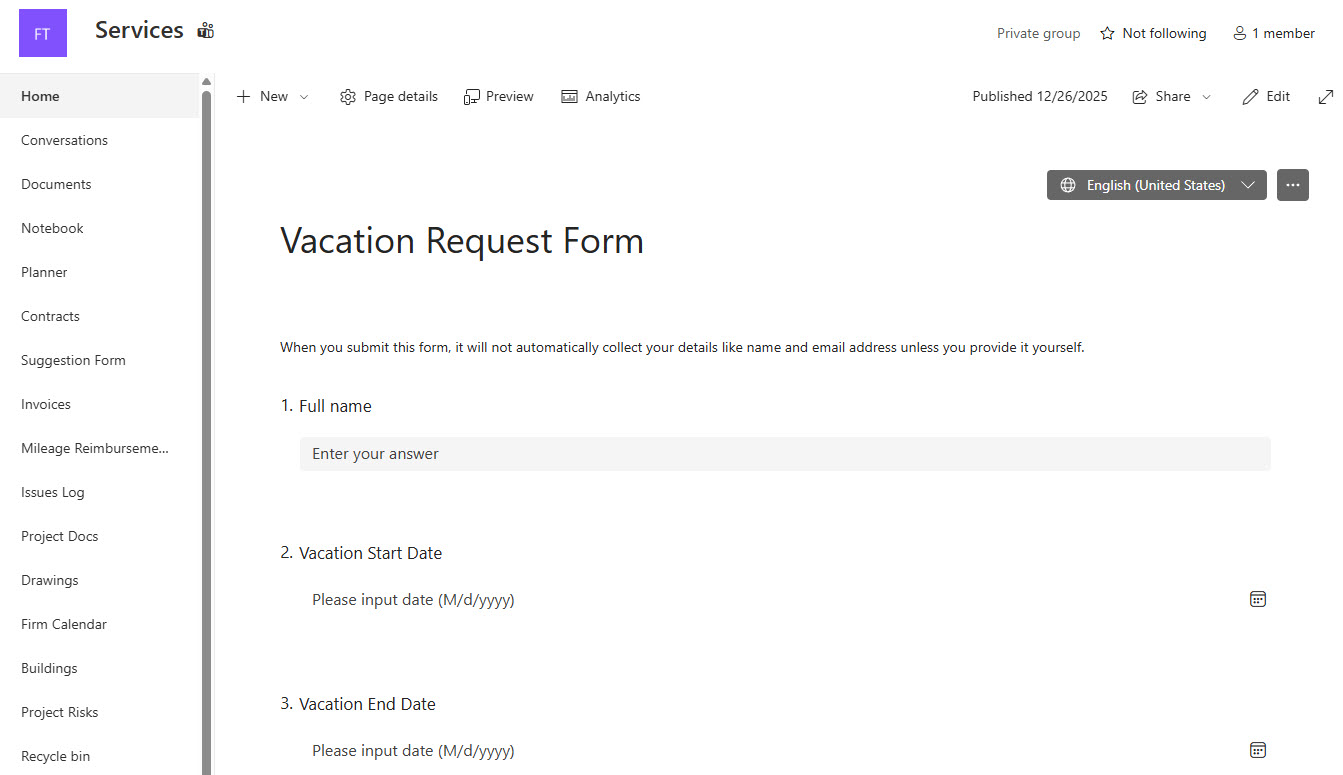
Microsoft Forms Web Part

Benefits
- Respond on the page: visitors fill in and submit the form without leaving SharePoint.
- Two modes in one web part: collect responses with the live form or show a chart summary of the results.
- Create or reuse: build a brand-new form from the page or paste the web address of an existing one.
- Live results: submissions appear in Microsoft Forms in real time, ready for review or Excel export.
- Flexible audience: the form’s own settings control who can respond, from your organization only to anyone with the link.
- Fits any layout: the form resizes automatically to a full-width section or a narrow column.
Settings
- Add new form: name a brand-new form and build the questions in Microsoft Forms; the form’s web address fills in automatically.
- Add existing form: paste the form’s web address into the Form web address field.
- Collect responses or Show form results: the toggle that decides whether the page shows the form or a summary of its answers.
- Edit current form: jumps straight to the form in Microsoft Forms so you can change questions without hunting for it.
- Collect responses: shows the live form on the page so visitors can fill it in and submit on the spot. Best for feedback forms, polls, sign-ups, and request intake.
- Show form results: shows a summary of the responses with charts instead of the form itself. Best for sharing poll outcomes or survey highlights with the whole team.
Limits and Nuances
- Form settings control access: who can respond is governed by the form’s own settings in Microsoft Forms, not by page permissions; a form set to ‘only people in my organization’ will ask outside visitors to sign in.
- Results addresses travel: Show form results generates a web address, and anyone who has it can view the response summary, so think twice before using it for sensitive surveys; only the form’s owners and co-owners can generate that address, and rights on the page alone are not enough.
- The results mode shows the summary view only: for individual responses and the Excel export, open the form in Microsoft Forms.
- Responses live in Microsoft Forms, not in SharePoint: if the answers should land in a list, connect the form to the list with Power Automate.
- Paste the response link, not the edit link: Forms provides a dedicated link for collecting responses, and that is the address the web part needs.
- One form per web part: to put two forms on a page, add the web part twice.
- File upload questions limit the audience: a form with one can only be answered by people inside your organization, because Forms locks the sharing setting when that question type is present.
- Availability gaps: the web part is not available in the SharePoint mobile app or in GCC, GCC High, and DoD government cloud environments.
Microsoft Forms vs. the Alternatives
- Microsoft Forms vs. a SharePoint list form: use a list when the submissions are business data that needs views, permissions, version history, and follow-up workflows; use Forms for quick surveys, polls, and quizzes where the summary matters more than the rows.
- Microsoft Forms vs. a Power Apps form: Power Apps wins when you need heavy customization, cascading dropdowns, or business logic; Forms wins on the five-minute setup.
- Microsoft Forms vs. Dynamics 365 Customer Voice: Customer Voice adds advanced branding, question types, and analytics for customer-facing programs; Forms covers the everyday internal scenarios at no extra cost.
- Collect responses vs. Show form results: they are the same web part, so a common pattern is two pages: one embedding the form, one embedding the results.
Common Questions About the Microsoft Forms Web Part
Can people fill out the form directly on the SharePoint page?
Yes – that is the whole point of the web part. In Collect responses mode the live form renders right on the page, and visitors answer and submit without leaving SharePoint. Every submission goes straight into Microsoft Forms, where the owner sees responses in real time. The web part also resizes to fit the page layout, so the form works in a full-width section or a narrow column.
Why are some visitors asked to sign in before they can respond?
Because access to the form is governed by the form’s own sharing settings in Microsoft Forms, not by who can see the SharePoint page. If the form is set to ‘only people in my organization can respond,’ anyone not signed in with a work account gets a login prompt. Change the setting in Forms if you want a wider audience – the web part simply displays whatever the form allows.
Can I show survey results on a SharePoint page?
Yes. Switch the web part to Show form results and the page displays a live summary of responses with charts. Two things to know: Forms generates a web address for that summary, and anyone who has the address can view it, so avoid this mode for sensitive data. And only the form’s owners or co-owners can generate the address – permissions on the page alone are not enough.
Where do the form responses go, and can they end up in a SharePoint list?
Responses are stored with the form in Microsoft Forms, not in SharePoint – the page is just the front door. The form owner can review answers and export them to Excel from Forms. If you want each submission to become an item in a SharePoint list, connect the form to the list with Power Automate, which copies every new response over automatically.
Can external or anonymous users respond to an embedded form?
They can, if two conditions are met: the form is set to ‘anyone can respond’ in Microsoft Forms, and your administrator allows that sharing option. Anonymous responses carry no identifying information unless you ask for it in a question. One catch – a form containing a file upload question is automatically limited to people inside your organization, so anonymous and file uploads cannot be combined.
When should I use a SharePoint list instead of the Forms web part?
When the submissions are records, not opinions. Requests, registrations, and anything needing follow-up belong in a list, where each entry gets views, permissions, and workflow potential. Surveys, polls, and quizzes belong in Forms. The forms and surveys designs on LookBook 365 use this exact web part on out-of-the-box pages – the only way Greg Zelfond builds – so you can see both approaches side by side. Microsoft Forms Web Part with embedded survey questions Microsoft Forms Web Part with embedded survey results Microsoft Forms Web Part Settings