Sites Web Part

Benefits
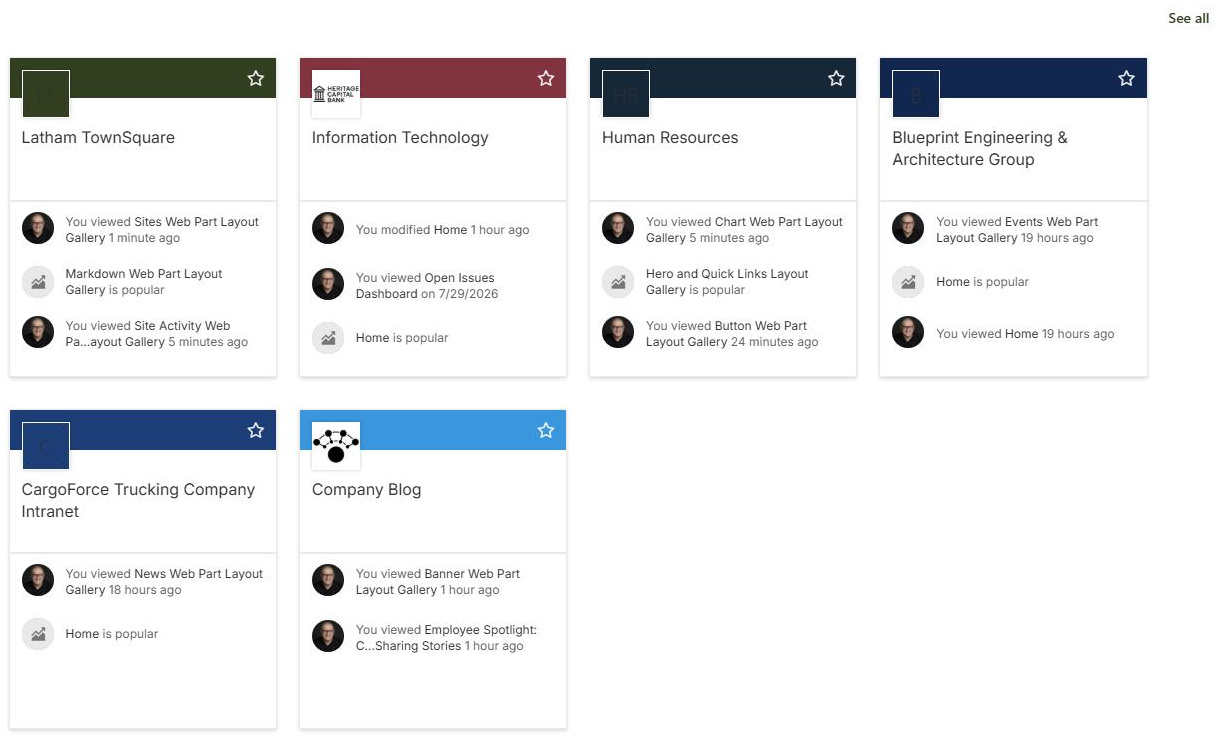
- Navigation with context: each site shows its name, a link, and its latest activity, so people see where things are happening.
- Stays current on its own: the hub option picks up new sites automatically as they join, with no page edits needed.
- Personalized when you want it: the frequent sites option mirrors each viewer’s own SharePoint start page.
- Three layouts to fit the page: Filmstrip for wide sections, Cards for reorderable tiles, Compact for narrow columns and sidebars.
- Less upkeep than a manual link list: automatic options keep the web part current as the intranet grows.
Settings
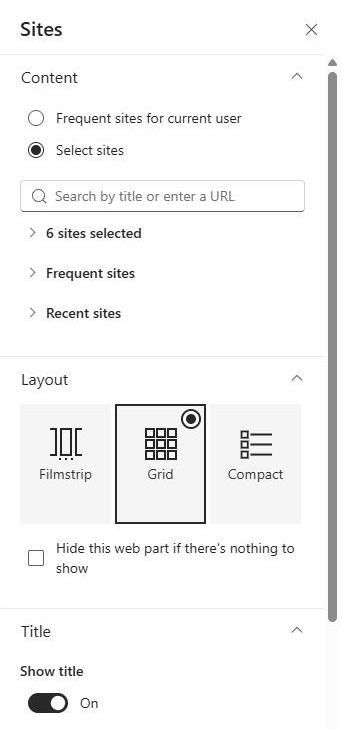
- Select sites: hand-pick sites via search or from the hub-associated, frequent, and recent site lists.
- All sites in the hub: automatic display of every hub-associated site; this option appears only when your page is part of a hub.
- Frequent sites for current user: personalized; mirrors the sites shown on each user’s SharePoint start page.
- Layout: Filmstrip, Cards, or Compact.
- Filmstrip: a horizontal row of site tiles; works well in a full-width or wide section.
- Cards: sites display as tiles, and this is the only layout where you can reorder sites by drag and drop.
- Compact: a condensed list that saves vertical space; ideal for narrow columns and sidebars.
Limits and Nuances
- Manually selected sites are not security trimmed: everyone sees the links, and people without access hit a permission request when they click. Plan your picks accordingly.
- All sites in the hub is security trimmed: viewers only see the hub sites they have permission to open.
- Frequent sites for current user shows a different list to every viewer: it mirrors their SharePoint start page, so do not expect the page to look identical for everyone.
- Each site entry includes the site name, a link, and the latest activity: recent updates and views, for example.
- The web part links to whole sites only: for links to pages, documents, or external URLs, use Quick Links instead.
Sites vs. the Alternatives
- Sites web part vs. hub navigation: hub navigation gives persistent links at the top of every hub page; the Sites web part showcases sites with activity on one specific page. Many intranets use both.
- Sites web part vs. Quick Links: Quick Links can point to anything (pages, files, external URLs); the Sites web part only lists SharePoint sites but adds live activity for each.
- Sites web part vs. Highlighted Content: Highlighted Content surfaces documents and pages by query; the Sites web part surfaces whole sites.
- Sites web part vs. a manual list of links in the Text web part: a text list needs constant upkeep and shows no activity; the automatic hub and frequent-sites options keep the Sites web part current on their own.
Common Questions About the Sites Web Part
What does the Sites web part do in SharePoint?
It displays a collection of SharePoint sites on a page, each shown with its name, a link, and a summary of recent activity such as updates and views. You can hand-pick the sites, show everything associated with your hub automatically, or show each visitor their own frequently visited sites. It comes with three layouts: Filmstrip, Cards, and Compact.
Can the Sites web part automatically show all the sites in my hub?
Yes, if the page belongs to a hub. The All sites in the hub option automatically lists every site associated with that hub, and new sites appear as they join – no page edits needed. This view is security trimmed, so each visitor only sees the hub sites they actually have permission to open.
Why do people see sites they cannot access?
That happens with manually selected sites. When you hand-pick sites with Select sites, the links display for everyone, even viewers without permission – they get an access request message when they click. Only the automatic All sites in the hub option trims the list to what each viewer can open. If access varies across your audience, prefer the automatic option.
Why does everyone see different sites in the web part?
You probably chose Frequent sites for current user. That option is personalized – it mirrors the sites each person visits most, the same list shown on their SharePoint start page – so every viewer sees something different. It is great for a personal landing page, but use Select sites or All sites in the hub when everyone should see the same list.
Can I control the order of the sites?
Only in the Cards layout. Switch the layout to Cards, then drag and drop the sites on the page into the order you want. Filmstrip and Compact do not support manual reordering, so if a precise order matters – say, ranking departments by importance – Cards is the layout to use.
When should I use the Sites web part instead of Quick Links or hub navigation?
Use hub navigation for the persistent links at the top of every hub page, and the Sites web part when you want sites showcased on the page itself with activity at a glance. Quick Links is better when you link to pages and files rather than whole sites. The intranet designs on LookBook 365 combine these exact web parts out-of-the-box – the only way Greg Zelfond builds.