Text Web Part

Benefits
- Adds context and narrative: the paragraphs, instructions, and explanations every page needs around its other web parts
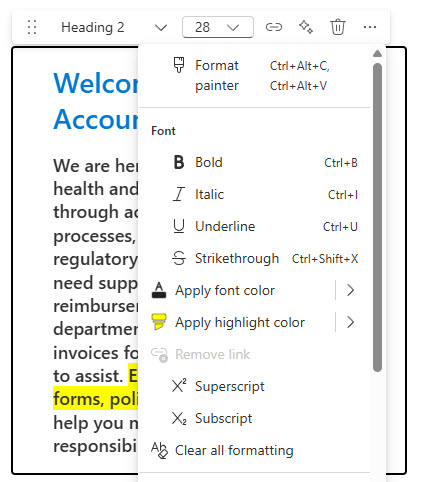
- Rich formatting without complexity: heading styles, lists, hyperlinks, font colors, and highlighting in a familiar editor
- Simple for every editor: anyone who can type can update the content, no technical skills required
- Tables and inline images: short reference tables with themed styles and pasted pictures live right inside the text
- Consistent by design: the site theme font and fixed spacing keep every page looking uniform
- Built-in page anchors: heading styles become linkable anchors, perfect for long policy and FAQ pages
Settings
Web part level:
- Paragraph styles: Normal text plus heading levels that set both the visual size and the page’s heading structure; headings double as linkable page anchors.
- Formatted text: bold, italics, underline, bulleted and numbered lists, indentation, plus font colors and highlighting for emphasis.
- Hyperlinks: paste a URL and it converts to a link automatically, with an option to set different display text.
- Tables: insert a simple starter table, add or delete rows and columns, align it left, center, or right, and choose from five styles including themed styles that match your site colors.
- Inline images: copy and paste an image at the cursor, then align it left, right, or center and resize it with the corner handles.
- Page anchors: heading styles automatically become linkable anchors on the published page.
- Responsive output: everything in the web part reflows automatically on tablets and phones.
Limits and Nuances
- There is no font picker: the Text web part always uses your site’s theme font, which keeps every page consistent.
- Spacing is fixed by design: line height stays at 140% of the font size and spacing after headings is fixed at 12 pixels; press Shift+Enter for a single line break instead of a full paragraph break.
- Images can only be pasted in: there is no insert-image button; copy the image first, then paste it at the cursor.
- Left- or right-aligned images should be wider than 50% of the column: narrower images show white space on either side and do not look aligned.
- Spelling and grammar checking with Editor is a page-level setting: it is switched on for the whole page, not per web part, and everyone who can view the page sees the same text with no audience targeting.
- Themed table styles follow the site theme: change the theme and your table colors update automatically.
Text vs. the Alternatives
- Text vs. Markdown: Text gives a visual formatting toolbar anyone can use; Markdown is for authors who prefer typing markdown syntax. For most intranet pages, Text wins.
- Text vs. Image: a pasted inline image works for small visuals inside a paragraph; use the Image web part when you need captions, alt text, and proper sizing controls.
- Text vs. Call to Action: when the whole point is one short message plus a button, the Call to Action web part delivers it with more visual punch.
- Text vs. List: tables in the Text web part are static; if people need to sort, filter, or edit the data, put it in a list and use the List web part.
Common Questions About the Text Web Part
What is the Text web part used for in SharePoint?
It is the standard web part for written content on modern SharePoint pages – paragraphs, headings, bulleted and numbered lists, hyperlinks, tables, and inline images. Any time a page needs context, instructions, or narrative around other web parts, the Text web part is the out-of-the-box answer. Every design on LookBook 365 uses it – it is the workhorse of the way Greg Zelfond builds pages.
Can I change the font in the Text web part?
No. The Text web part uses your site’s theme font, and there is no font picker in the toolbar. What you can control is the paragraph style (Normal text or heading levels), bold, italics, underline, font color, and highlight color. If consistent typography matters to you, that is actually a feature – every page on the site stays visually uniform without anyone policing fonts.
Does the Text web part support tables?
Yes. The Insert table button adds a simple table, and a dedicated formatting pane lets you insert or delete rows and columns, align the table left, center, or right, and choose from five table styles, including themed styles that pick up your site’s theme colors. Tables are best for short reference content – for sortable or filterable data, use the List web part instead.
How do I add an image inside the Text web part?
Copy the image and paste it at your cursor position – there is no insert button for images in this web part. Once pasted, a small toolbar lets you align the image left, right, or center, and corner handles let you resize it. One nuance: a left- or right-aligned image should be wider than half the column, or it will show awkward white space around it.
What are page anchors in the Text web part?
Heading styles in a Text web part automatically become page anchors – links that jump straight to that section. On a published page, each heading exposes a link symbol you can use to copy the anchor link. Paste that link into an email or Teams message and the recipient lands exactly on that section of the page, which is perfect for long policy or FAQ pages.
Can I change line spacing in the Text web part?
Line height is fixed at 140% of the font size, so there is no spacing control to adjust. Pressing Enter starts a new paragraph with a full line of space between paragraphs; pressing Shift+Enter inserts a single line break with no extra space. Spacing after headings is also fixed. These constraints keep pages consistent and readable, which is exactly what they are designed to do. Text Web Part with H2 Heading Text Web Part over the background image Text Web Part with Headings Text Web Part in a News Post Text Web Part Configuration Options