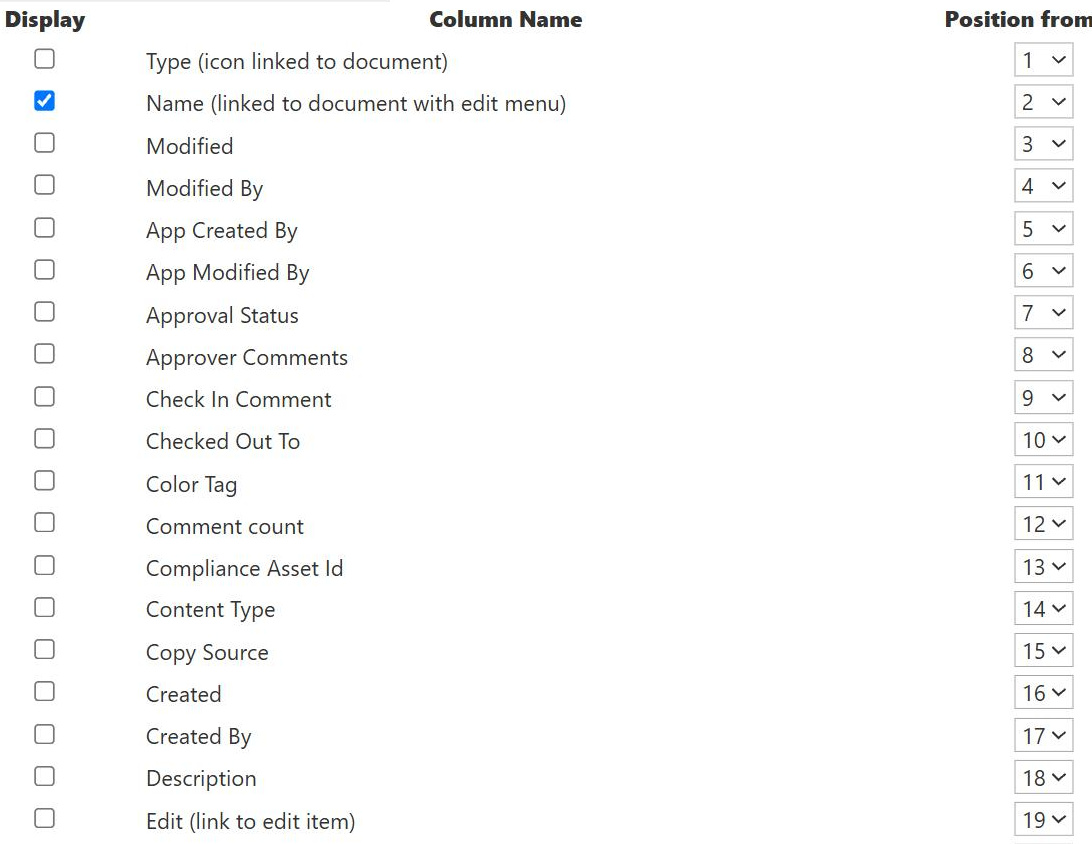
Name Column
Common Use Cases
- Opening documents: the Name is the clickable link that opens each file
- Renaming files: update the Name to rename a document in place
- Consistent naming: apply conventions so files sort and scan predictably
- Sorting libraries: order a library alphabetically by file name
- Search and findability: clear names help users and search locate files
- Bulk organization: rename in the grid to standardize a set of files
How It Works
- Equals the file name: Name is the actual name of the file in the library
- Internal name FileLeafRef: the leaf part of the path, referenced in code and JSON
- Includes the extension: the file type suffix is part of the Name
- Editable in place: renaming updates the Name without re-uploading
- Unique per folder: no two files can share a Name in the same folder
- Links to open: clicking the Name opens or previews the file
Benefits
- Human-friendly label: the primary way people recognize a file
- Direct action: one click from the Name opens the document
- Editable: rename without losing version history or the item
- Sort and scan: clean names make a library easy to browse
- Findability: good names strengthen search results
- Always present: every library file has a Name out-of-the-box
Details
- Feature Category: Columns & Views
Limits and Nuances
- Name is not Title: in libraries these are two separate columns
- Length ceilings apply: deep folders plus long names can exceed the path limit
- Restricted characters: some symbols are not allowed in a file name
- Case-insensitive uniqueness: Report.docx and report.docx clash in one folder
- Renaming affects links: changing a Name can break links that used the old one
- Lists differ: list items use Title as their primary label, not a file Name
Common Questions About the Name Column
What is the Name column in a SharePoint library?
In a document library, the Name column is the file’s name, and it is the link users click to open the document. Its internal name is FileLeafRef, meaning the leaf, or final, part of the file’s path. The Name includes the file extension and is editable, so renaming a file simply updates it. Because it is both the human label and the open action, the Name column carries a lot of a library’s usability.
What is the difference between Name and Title?
In a document library they are two different columns. Name is the actual file name, including its extension, and controls how the file is stored and opened. Title is a separate, optional descriptive label that does not change the file name. Editing Title never renames the file, and renaming the file never changes Title. Many libraries hide Title and rely on a clear Name, though Title can add a friendlier display label.
Why is the Name column called FileLeafRef?
FileLeafRef is the field’s internal name and refers to the leaf of the file’s path, which is the file name itself without the folder path in front of it. SharePoint keeps this internal name stable so views, column formatting, and automations keep working. When you reference the file name in JSON formatting, Power Automate, or PowerShell, use FileLeafRef, and reserve Name for the label users see in the library.
Are there rules for what I can name a file?
Yes. SharePoint blocks certain characters and does not allow leading or trailing spaces, and the entire URL path plus file name must stay under an overall length limit. That means a long file name inside several nested folders can hit the ceiling even if the name alone seems short. Names must also be unique within a folder, and uniqueness ignores case, so Report.docx and report.docx conflict in the same folder.
Does renaming a file in SharePoint break anything?
It can. Renaming changes the file’s Name and therefore its address, so links that pointed to the old name may stop working, and anyone with the previous link could get an error. Version history and the item itself are preserved through a rename, so you do not lose the document. When names must change often, it is worth planning links around the stable ID or sharing links that survive renames.
How should I approach file naming in a library?
Consistency beats cleverness. A predictable convention makes files sort, scan, and search well, and it reduces duplicates and confusion. Greg Zelfond, the consultant behind LookBook 365, often pairs a sensible naming convention with metadata columns and views, so people can both recognize a file by its Name and filter the library by properties, getting the best of clear names and structured, out-of-the-box organization.