Hyperlink Column
Common Use Cases
- Link directories: curated lists of tools, portals, and resources with clean clickable names
- Vendor and supplier lists: each record links straight to the vendor site or portal
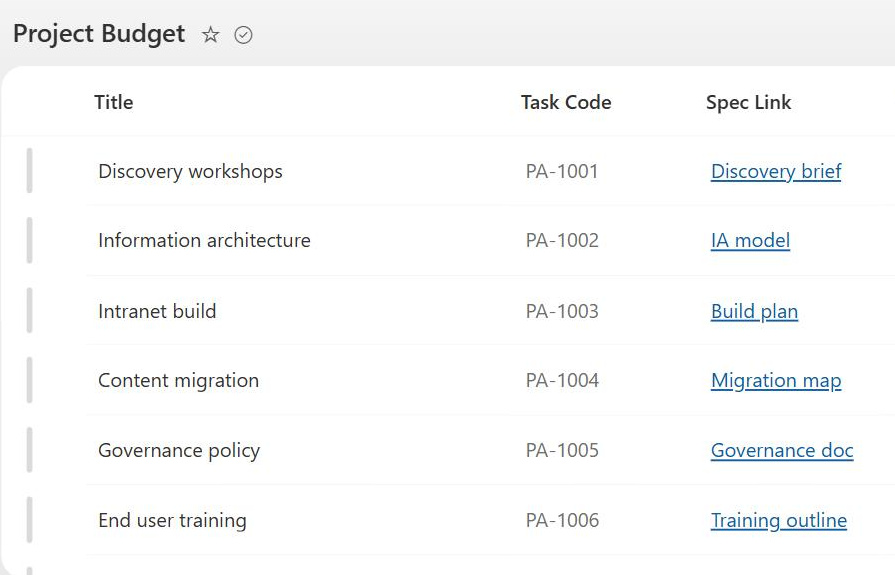
- Project trackers: every project row links to its project site, plan, or dashboard
- Contract and policy lists: items link to the authoritative document stored elsewhere
- Training catalogs: course entries link to registration pages or learning platforms
- Logo and badge display: Picture format shows an image hosted at a URL next to each item
Benefits
- Clean display text: users see a readable label instead of a long raw URL
- One-click access: links are clickable directly from views, with no need to open the item
- Dual personality: the same column type renders links or pictures depending on the format setting
- Works everywhere: behaves identically on lists and document libraries
- Formatting friendly: JSON column formatting can restyle links as buttons and calls to action
- No code required: connecting items to external destinations needs zero development
Details
- Feature Category: Columns & Views
How It Works
- Two values in one: each entry stores the URL plus optional display text; when the text is omitted, the URL itself displays
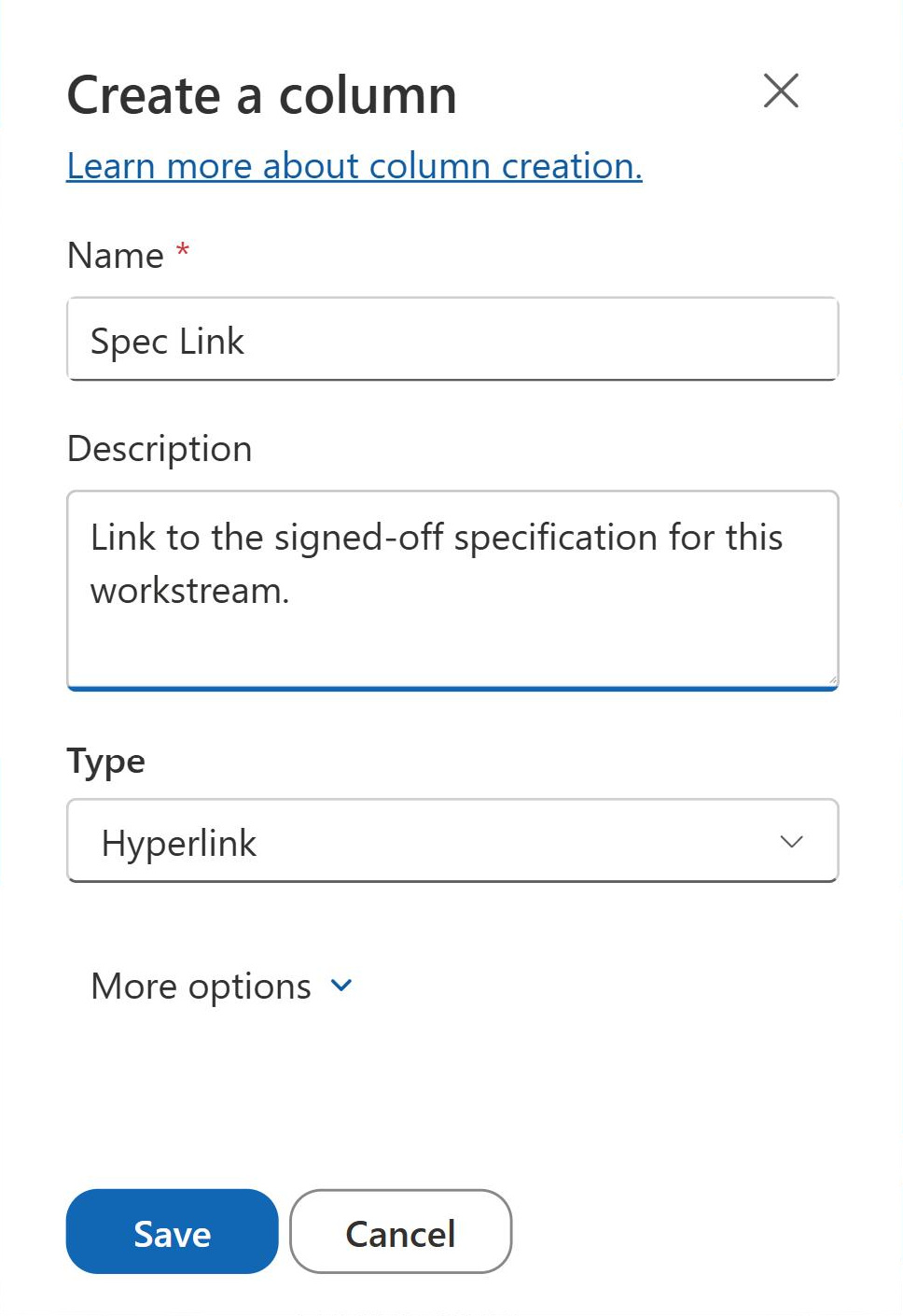
- Hyperlink format: the column renders clickable text that opens the target address
- Picture format: the column treats the URL as an image source and renders the picture in views and forms
- Reference, not storage: Picture format displays an image hosted elsewhere; the file itself is never copied into the list
- 255-character ceiling: the stored URL can be up to 255 characters long
Limits and Nuances
- 255-character URL limit: longer links must be shortened or stored in a Multiple Lines of Text column
- No formula access: calculated columns cannot reference or return Hyperlink or Picture values
- Cannot be indexed: the type is not supported for column indexing on large lists
- Picture format expectations: an image renders only when the URL points directly to an image file the viewer has permission to load
- Display text is manual: the friendly label is typed per item; it does not generate automatically
- Image column overlap: for uploaded images with stored files and thumbnails, the dedicated Image column is the better fit
Common Questions About the Hyperlink Column
What is the Hyperlink or Picture column in SharePoint?
It is a column type that stores a web address plus optional display text, shown in views as a clickable link. A format setting switches it between Hyperlink, which renders the link, and Picture, which renders the image the URL points to. It works in both lists and libraries and is the standard way to attach an external or internal link to each item.
What is the difference between the Hyperlink and Picture formats?
Both store a URL. In Hyperlink format, the column displays clickable text that opens the target. In Picture format, the column treats the URL as an image source and renders the picture itself in views and forms. Picture format expects a direct link to an image file the viewer can access; it references the image rather than storing a copy.
Why is my URL rejected as too long?
The Hyperlink or Picture column accepts URLs up to 255 characters, and long tracking links or deeply nested document URLs can exceed that. Practical workarounds include shortening the URL, linking to a parent location, or storing very long links in a Multiple Lines of Text column, which has no 255-character ceiling but loses the dedicated link formatting.
Should I use a Hyperlink column or an Image column for pictures?
Use the Image column when people should upload or pick an actual image; SharePoint stores the file and shows a thumbnail. Use the Hyperlink or Picture column in Picture format only when the image already lives at a stable URL you want to reference. For logos, photos, and visual trackers, the Image column is usually the cleaner experience.
Can calculated columns or formulas work with hyperlink data?
No. Calculated column formulas cannot reference a Hyperlink or Picture column, and a calculated column cannot return a clickable link. Hyperlink columns also cannot be indexed for large-list filtering. When links must be assembled dynamically from other fields, the usual answers are JSON column formatting on a text column or a Power Automate flow that writes the link.
Where do hyperlink columns fit in a well-built SharePoint site?
They shine in link directories, vendor and tool lists, and trackers where every item points somewhere: a contract record linking to the signed PDF, a project row linking to its site. On LookBook 365, Greg Zelfond pairs Hyperlink columns with JSON formatting to turn raw links into clean buttons, a polished result achieved entirely out of the box.