Organization Chart Web Part

Benefits
- Zero drawing, zero upkeep: the chart builds itself from directory data and updates automatically when reporting lines change.
- Answers who reports to whom at a glance: new hires and visitors see the structure without asking around.
- Live contact details: hovering over or selecting anyone on the chart opens a card with their information.
- Set up in minutes: pick one person and the number of reporting levels; the directory does the rest.
- Great for onboarding: team and department pages show structure and faces in one view.
Settings
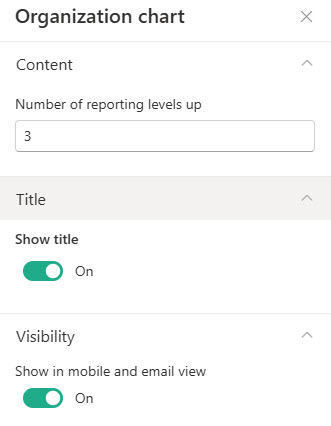
- Title: replace the default Organization chart text with your own heading.
- Person: the name or email address of the person the chart builds around.
- Number of reporting levels up: how many layers of management above that person to display.
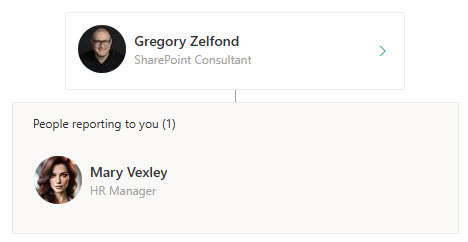
- A visual reporting hierarchy: generated automatically from your organization’s directory.
- Centered on one person: you choose them by name or email address.
- Reporting levels you control: display as many layers of management above that person as you specify.
- Profile pictures, names, and job titles: on every card, pulled from user profiles.
- An information card: contact details appear when a viewer hovers over or selects a person.
Limits and Nuances
- The hierarchy comes entirely from the Manager field in Microsoft Entra ID: if the chart is wrong, fix the Manager attribute in the directory, not the web part.
- If Manager fields are empty or inconsistent, the chart will not populate correctly: directory hygiene is the whole game with this web part.
- External users cannot be added: the chart only displays people with accounts in your organization’s directory.
- Asking for more levels up than exist is harmless: if you enter 3 and only two managers exist above the person, the chart shows two.
- It is built to show the structure around one person: it is not designed to render an entire company tree on a single page.
- Directory changes can take time to sync to SharePoint profiles: expect a short delay before a reorg shows up on the page.
- Once the directory is right, the chart maintains itself: reporting changes appear automatically with no page edits.
- There are no layout or styling options: the look is fixed, and the visual polish comes from the rest of your page design.
Organization Chart vs. the Alternatives
- Organization Chart vs. People: People is a hand-picked, flat set of profile cards in an order you control; Organization Chart draws the reporting structure automatically. Use People for curated contacts, Organization Chart for hierarchy.
- Organization Chart vs. a drawn diagram (Visio or an image): a drawn chart looks exactly how you want but goes stale the day someone changes roles; the web part stays current on its own.
- Organization Chart vs. the profile card in Teams and Outlook: the profile card shows the org structure one lookup at a time; the web part publishes it on a page where the whole team can see it.
- Organization Chart vs. third-party org chart apps: add-ins can render full company trees with search and export, but the out-of-the-box web part costs nothing, installs nothing, and is enough for most department and team pages.
Common Questions About the Organization Chart Web Part
Where does the Organization Chart web part get its data?
From your Microsoft 365 directory (Microsoft Entra ID). The reporting structure is read from each person’s Manager attribute, and the photos, names, and job titles come from user profiles. The web part itself stores nothing – which is why it never goes stale, and also why any error on the chart traces back to the directory. If a reporting line is wrong, the Manager field is what needs correcting.
Why is my organization chart empty or showing the wrong structure?
Almost always a directory issue. The chart depends on the Manager attribute being filled in consistently for everyone shown – if it is blank or wrong in Microsoft Entra ID, the chart reflects that. If your directory syncs from Active Directory, fix the manager field at the source and wait for the sync. There can also be a short delay before directory changes reach SharePoint profiles, so a brand-new reorg may take time to appear.
Can the Organization Chart web part show my entire company?
It is designed to show the structure around one person, not a full company tree. You choose the person at the center and how many reporting levels up to display, and viewers can explore from there – hovering over anyone opens a card with their details. For a complete enterprise-wide chart with search and export, a dedicated tool is the better fit; for a department or leadership page, this web part is usually all you need.
Does the org chart update automatically when people change roles?
Yes – this is its biggest advantage over a drawn chart. Because the hierarchy is read live from the directory, a promotion, a new hire, or a reporting change appears on the page automatically once the directory is updated and synced. Nobody has to edit the SharePoint page. Compare that with a Visio diagram or an image of an org chart, which is out of date the moment anything changes.
Can I add external users or guests to the organization chart?
No – external users cannot be added to the Organization Chart web part. The chart is built from your organization’s internal directory, so it can only display people with accounts in your Microsoft Entra ID. If you need to show partner or vendor contacts alongside your team, list them with a SharePoint contacts list or feature internal points of contact with the People web part instead.
When should I use the Organization Chart web part instead of the People web part?
Use Organization Chart when the question is who reports to whom – it draws the hierarchy automatically and keeps itself current. Use People when the question is who to contact – it lets you hand-pick individuals in a deliberate order with taglines. Many department sites use both on the same page. The designs on LookBook 365 do exactly that, out-of-the-box with a custom theme – the only way Greg Zelfond builds. Org Chart Web Part Example Org Chart Web Part Settings