Planner Web Part

Benefits
- Tasks where the team already is: the live plan sits on the SharePoint page, so nobody opens another app to check work.
- Real edits, not a snapshot: dragging a card or completing a task updates the actual plan instantly.
- Two views from one plan: the Board for working pages, the Charts view for status pages and dashboards.
- Live progress visuals: the Charts view summarizes task status and workload at a glance.
- Permission-aware: Planner permissions follow Microsoft 365 group membership, so the tasks stay with the team.
- Zero setup: pick an existing plan and a display, or create a brand-new plan right from the web part.
Settings
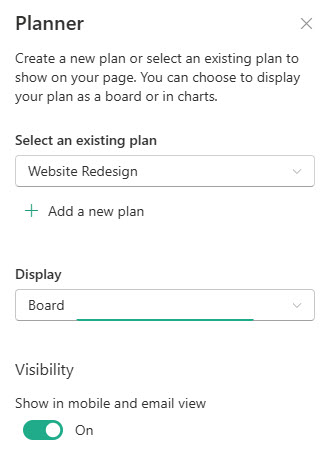
- Plan: create a brand-new plan by typing a name, or pick one of the site’s existing plans.
- Display: choose Board to show the task board or Charts to show the progress visuals.
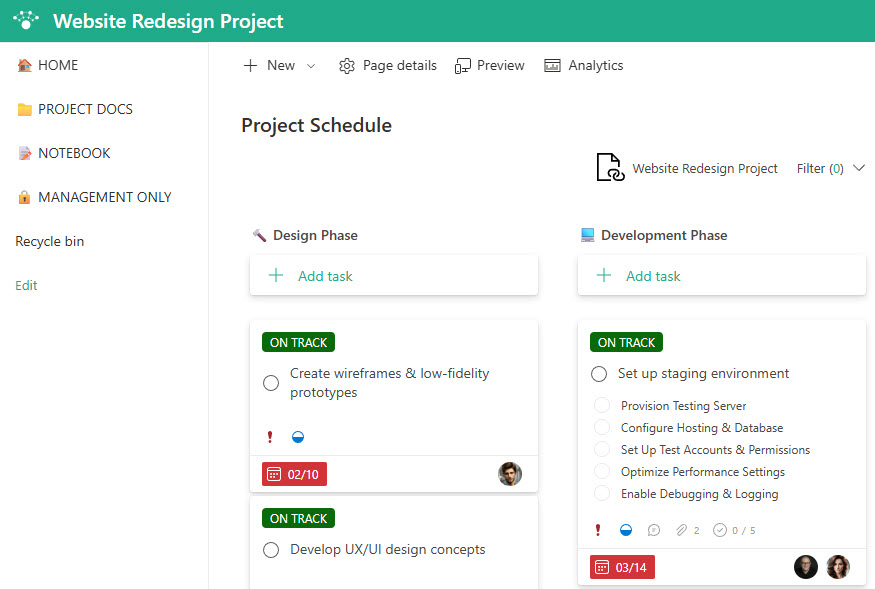
- Board: shows the full Planner board with its buckets and task cards. Best for working pages where the team drags tasks between buckets, marks them complete, and opens task details.
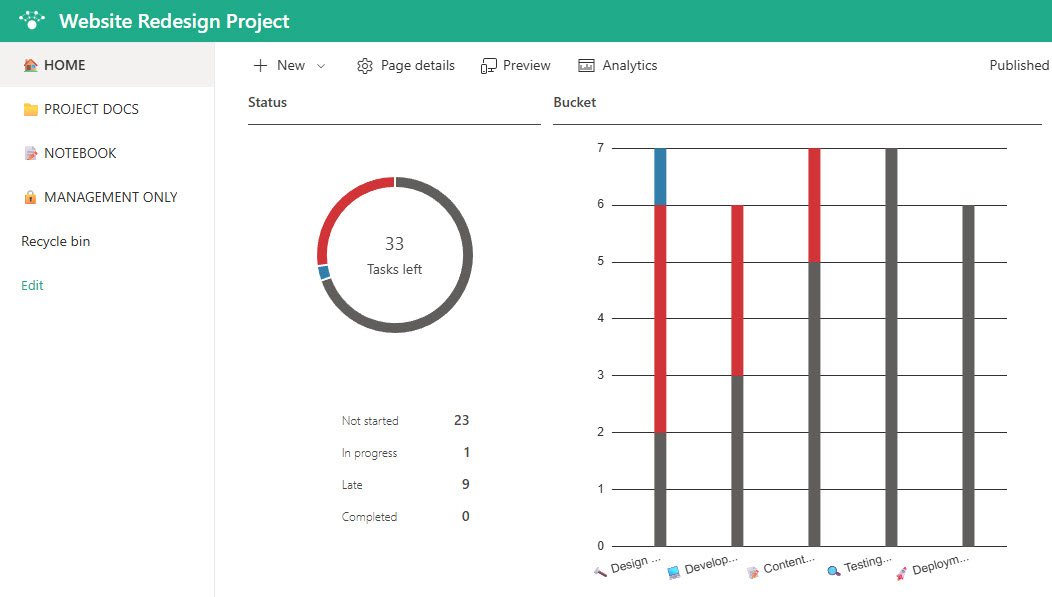
- Charts: shows a visual summary of the plan’s progress, such as task status and workload. Best for status pages and dashboards where people need the big picture, not the individual cards.
Limits and Nuances
- Group-connected team sites only: the web part does not appear on communication sites or on team sites without a Microsoft 365 group.
- Own group only: the plan picker shows only plans that belong to the site’s Microsoft 365 group; there is no option to pull in a plan from another team or site.
- Edits on the page are real: dragging a card to another bucket or marking a task complete changes the actual plan, not a copy.
- New plans are real plans: creating a plan from the web part adds it to the site’s group, so name it carefully, because everyone in the group will see it in Planner too.
- Planner permissions follow group membership: page visitors who are not members of the Microsoft 365 group will not see the tasks.
- No premium plans: plans built on the new Planner’s premium features are not supported; the web part works with basic plans only.
- The web part shows one plan at a time: to display several plans on a page, add the web part once per plan.
Planner vs. the Alternatives
- Planner web part vs. a SharePoint task list: use Planner for lightweight, card-based teamwork with assignments and buckets; use a custom list when you need your own columns, views, version history, and approval workflows.
- Planner web part vs. a link to Planner: a Quick Links tile sends people away to the Planner app; the web part keeps the board on the page where everyone already is. Use the link only when the web part is unavailable, such as on a communication site.
- Planner Board view vs. Charts view: put the Board on the team’s working page and the Charts on the status page leadership visits; both can come from the same plan.
- Planner web part vs. Power BI: Planner charts cover one plan’s progress; reach for Power BI when you need reporting across many plans or combined with other data.
Common Questions About the Planner Web Part
Why is the Planner web part missing from my SharePoint site?
Almost always because of the site type. The Planner web part is only available on group-connected team sites – it does not appear in the web part toolbox on communication sites or on team sites without a Microsoft 365 group. If your page lives on a communication site, link to the plan instead or move the page to the team site.
Can the Planner web part show a plan from another team or site?
No. The web part works with plans that belong to the Microsoft 365 group connected to the site, and the plan picker only lists those. If a plan lives in another team, either add the web part on that team’s own SharePoint site or recreate the plan in the group that owns the page. There is no cross-group option in the web part itself.
Can people update Planner tasks directly from the SharePoint page?
Yes, and that is the web part’s biggest strength. In the Board display, group members can drag cards between buckets, mark tasks complete, and open task details without leaving the page. Every change is live and updates the real plan instantly, so the SharePoint page and the Planner app always show the same thing. There is no read-only switch, so keep that in mind on widely visited pages.
What is the difference between the Board and Charts displays?
Board shows the working view – buckets, task cards, assignments – and lets members interact with the tasks. Charts shows a visual roll-up of the plan’s progress, such as how many tasks are not started, in progress, late, or done. A common pattern, and one used across the project sites on LookBook 365 that Greg Zelfond builds, is Board on the team’s working page and Charts on the status page.
Who can see the tasks shown in the Planner web part?
Only members of the site’s Microsoft 365 group. Planner permissions follow group membership, so a visitor who can view the SharePoint page but is not in the group will not see the plan’s tasks. If the whole company should see progress on a public-facing page, consider summarizing status another way, since adding everyone to the group also gives them access to the rest of the team’s content.
Does the Planner web part work with the new premium plans?
No. The web part supports basic Planner plans – the board-and-buckets kind that belong to a Microsoft 365 group. Premium plans, which add timelines, dependencies, and other project features in the new Planner, do not appear in the web part’s plan picker. If your work runs in a premium plan, link to it from the page instead of trying to embed it. Planner Web Part with Plan embedded on a SharePoint page Planner Web Part with Charts embedded on a SharePoint page Planner Web Part Settings