Recent Documents Web Part

Benefits
- Instant pickup: each person lands straight back on the files they touched last, without hunting through sites and libraries.
- Personal to every visitor: two people on the same page see two different lists, each built from their own activity.
- Covers everywhere they work: documents come from all their SharePoint sites plus OneDrive for Business, not just the site hosting the page.
- Zero curation: the list builds and refreshes itself automatically, so nobody has to maintain it.
- Safe by default: the list only ever contains files the viewer already has permission to open.
Settings
- The viewer’s own recent documents: files the signed-in user recently opened or edited, refreshed automatically as they work.
- Content from everywhere the user works: all SharePoint sites plus their OneDrive for Business, not just the site hosting the page.
- A personalized list for every visitor: two people looking at the same page see two completely different sets of documents.
Limits and Nuances
- What you see in edit mode is not what your colleagues will see: the web part always shows the current viewer their own documents, so test with the understanding that every user gets a personal list.
- You cannot scope it to the current site or a specific library: it pulls from all the user’s SharePoint sites and OneDrive. For recent files from one place, use the Highlighted Content web part instead.
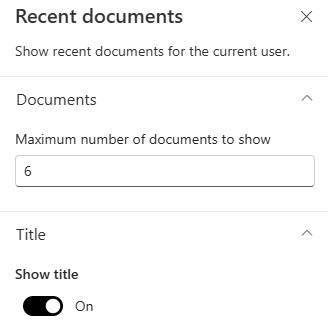
- The only configurable option is the document count (1 to 500): there are no filters by file type, site, or date, and no layout choices. The web part is deliberately zero-maintenance.
- Results are trimmed to each user’s own access and activity: the web part never exposes a file the viewer cannot already open.
- 500 documents is the technical ceiling, not a design goal: on a homepage or dashboard, five to ten documents is the sweet spot.
Recent Documents vs. the Alternatives
- Recent Documents vs. Highlighted Content: Highlighted Content lets you pick the source (this site, a specific library, a site collection) and filter and sort the results. Use it when the page needs recent files from one place; use Recent Documents when the page is about the person.
- Recent Documents vs. Document Library: the Document Library web part shows one specific library with its views and columns, the same for everyone. It is the choice for shared team content.
- Recent Documents vs. Site Activity: Site Activity shows what everyone has been doing on the current site; Recent Documents shows what you have been doing everywhere. One is about the site, the other about the user.
Common Questions About the Recent Documents Web Part
Whose documents does the Recent Documents web part show?
Each visitor sees their own. The web part reads the signed-in user’s recent activity across all their SharePoint sites and OneDrive for Business and builds a personal list on the fly. Two colleagues viewing the same page see entirely different documents. This trips up page editors constantly – the list you see while building the page is yours alone, not a preview of what others get.
Can I limit the Recent Documents web part to the current site or one library?
No. The web part always pulls from everywhere the user works – every SharePoint site plus OneDrive – and there is no source setting to narrow it down. If the page needs recent files from one specific site or library, the Highlighted Content web part is the right tool: it lets you pick the source, filter the results, and sort by most recent.
How many documents can the web part display?
You can set the maximum anywhere from 1 to 500 documents – and that count is the only setting the web part has. The technical ceiling and the sensible number are very different things: on an employee dashboard or homepage, five to ten documents gives people a quick jump back into their work without burying the rest of the page.
Can other people see my private documents through this web part?
No. The list is built per user from their own activity, and it only ever contains files that the user already has permission to open. A document you are working on privately will appear on your view of the page and nowhere else. Nothing about adding this web part to a page changes who can access any file.
Which SharePoint environment does the Recent Documents web part work in?
It is a SharePoint in Microsoft 365 web part. The personalization depends on cloud-based activity signals across the user’s sites and OneDrive, so everything described on this page applies to the modern SharePoint Online experience.
Where does the Recent Documents web part work best?
On personalized pages – an employee dashboard, a My Workspace area of the intranet homepage, or a landing page people hit first thing in the morning. It answers the question ‘where was that file I had open yesterday?’ without anyone maintaining a list. The dashboard designs on LookBook 365 use this exact out-of-the-box web part with a custom theme – the only way Greg Zelfond builds. Recent Documents Web Part Example Recent Documents Web Part Settings