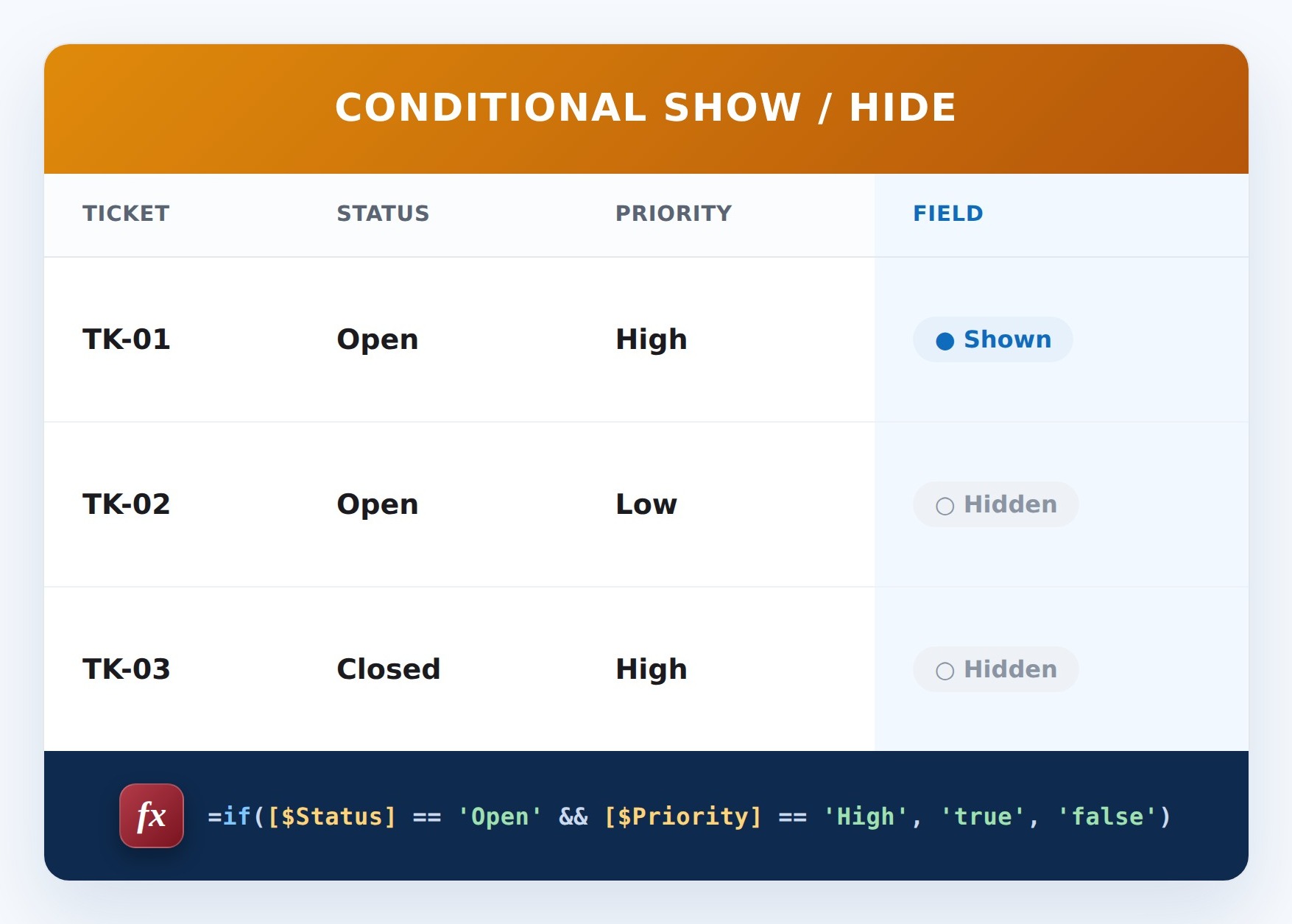
Show Field on Two Conditions (Formula)


How It Works
- What it does: Shows or hides the field only when two conditions are both true.
- When it shows: The field appears when Status is Open and Priority is High at the same time.
- When it’s hidden: If either condition isn’t met, it stays off the form. Form-only – it doesn’t block saving.
Common Use Cases
- Revealing fields on combined criteria
- High-priority open items
- Layered form logic
- Targeted field display
Details
- Formula Type: Conditional Show/Hide
- Formula Category: Status & Progress
Required Columns
Prerequisites
- Create the columns the formula reads: Status and Priority
- Add or edit a few items so there is data for the formula to work with
How to Apply the Formula
- Open the list and choose Edit form (or New/Edit form, then Edit)
- Select the field you want to control, then choose Edit conditional formula (Show/hide field)
- Paste the formula below – note the [$InternalName], == and && syntax
- Save the form, then test it by changing the trigger field
Formula
=if([$Status] == 'Open' && [$Priority] == 'High', 'true', 'false')Common Questions About Show Field on Two Conditions Formula
What does this formula do?
Reveal only when both true. It runs on the form, showing or hiding the field based on the trigger value.
Which columns do I need to set this up?
You need: Status (Choice), Priority (Choice). The formula reads these to produce its result.
Why is this formula syntax different from the others?
Show/hide formulas use SharePoint’s JavaScript-style syntax – [$InternalName], == for equals, && for and – rather than the Excel-style syntax used by calculated columns and validation.
If LookBook 365 is code-free and out-of-the-box, why does this example use a formula?
A SharePoint formula is native, declarative configuration, not custom development. It only works with the item’s own fields and simple logic – it cannot run scripts, reach external services, or change other data, and nothing is deployed to your tenant. It keeps working through Microsoft updates. If you would rather not set this up yourself, this is exactly the kind of thing I configure for clients.