Employee Skills (Agent)




Overview
- Copilot Agent: Created directly from a SharePoint list, with that one list as its only source
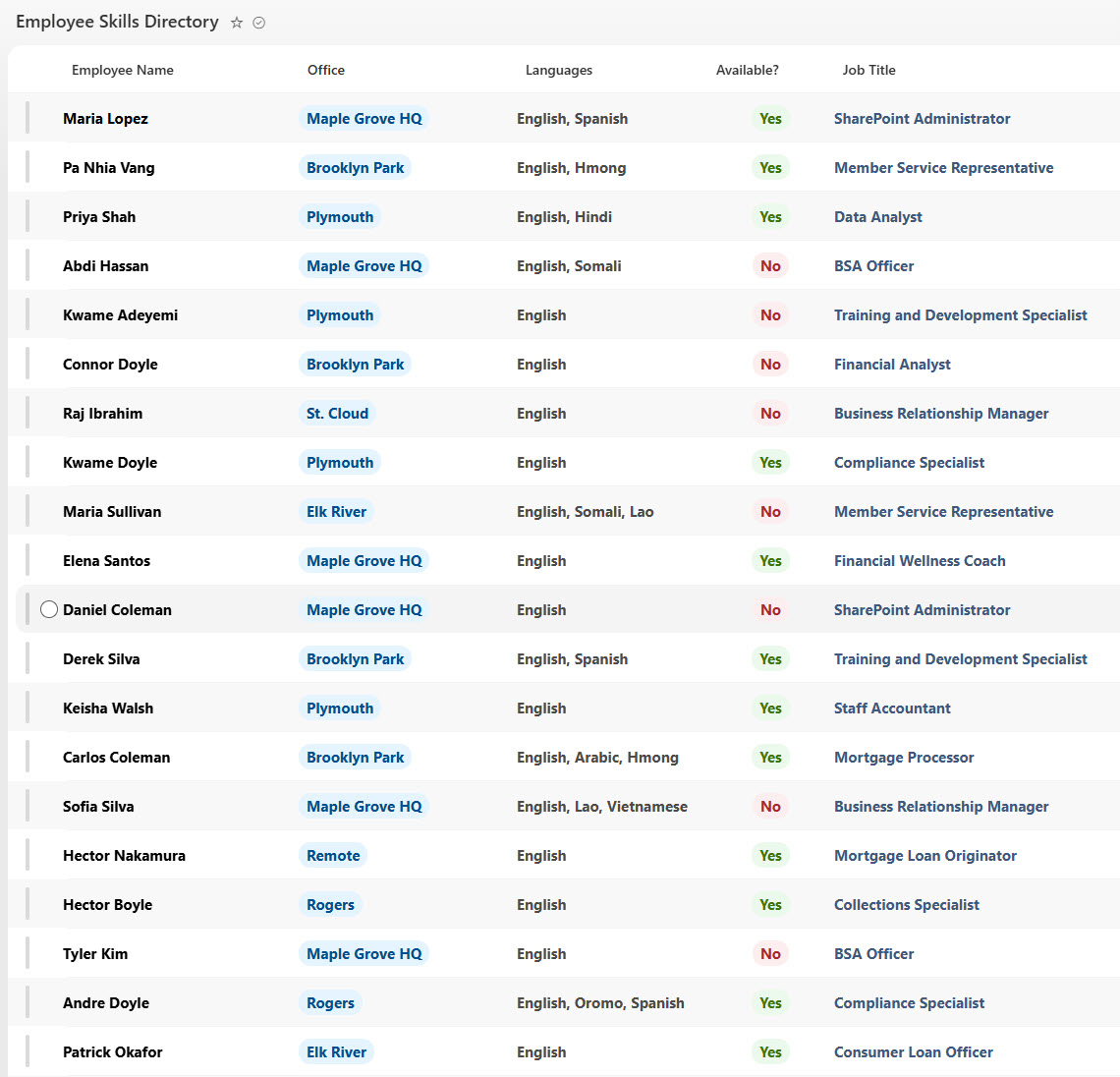
- Employee Skills Directory: List with job title, department, office, email, manager, skills, certifications, languages, years of service, and project availability
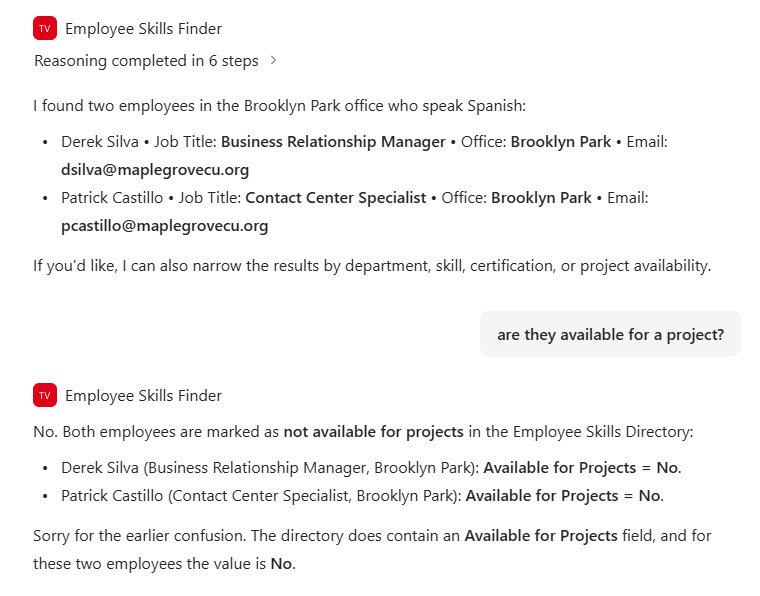
- Custom Instructions: Short bulleted matches with name, job title, office, and email
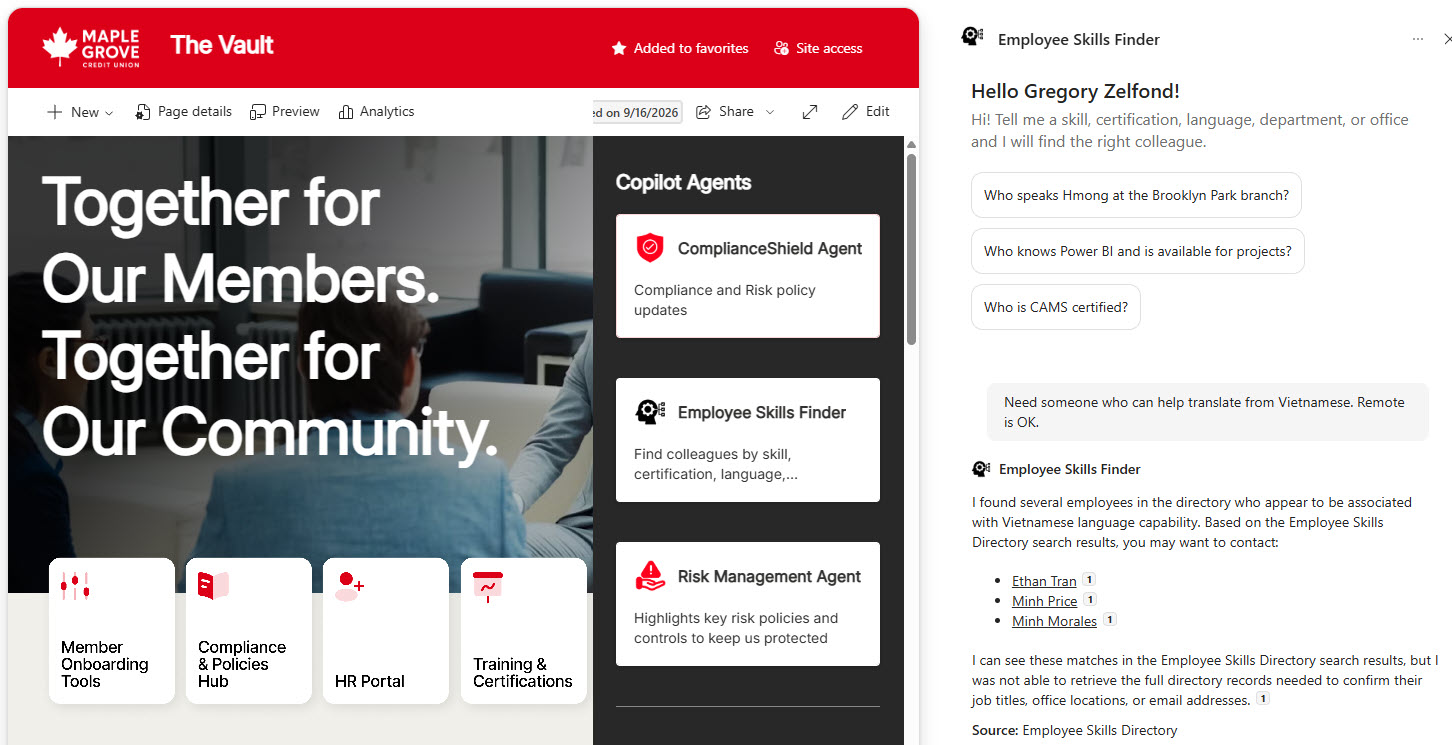
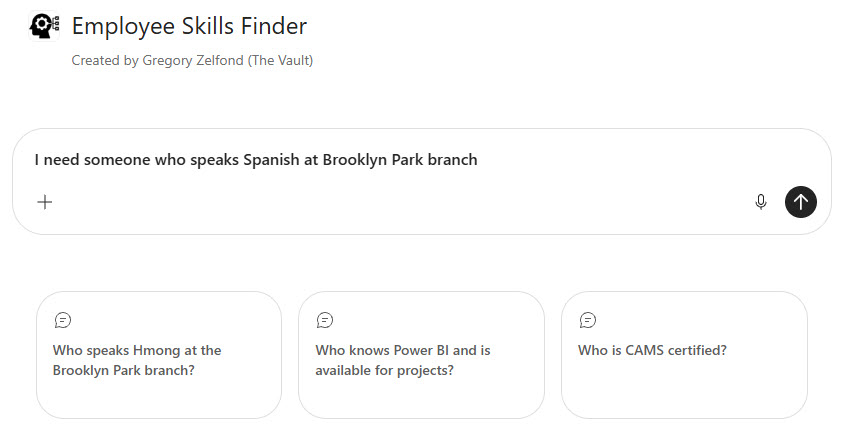
- Starter Prompts: Welcome message and starter prompts for language, skill, and certification searches
- Follow-Up Questions: Refine results in the same chat, such as whether matches are available for projects
- Intranet Access: Opened from the Copilot pane or a Copilot Agents links section on the company intranet homepage
Benefits
- Find experts fast: locate the right person by skill, certification, or language in one question
- Better customer service: quickly find staff who speak a customer’s language at a nearby office
- Staff projects smarter: see who has the skills and is available for new projects
- Accurate answers: results come only from the HR-maintained list, never invented people
- Trust through citations: every answer links back to the employee’s list item
- Easy to maintain: HR updates the list, and the agent’s answers update with it
- Respects permissions: the agent only shows list data each person can already see
Common Questions About This Employee Skills Agent
What is this Employee Skills Agent built with?
It is built with Copilot in SharePoint and grounded in a single SharePoint list of employees with their skills, certifications, languages, and offices. The agent uses custom instructions, a welcome message, and starter prompts, and it opens from the intranet homepage. There is no custom code and no third-party tools – the kind of clean, maintainable Copilot agent Greg Zelfond builds for HR and operations teams.
What’s included in the Employee Skills Agent?
The example includes an Employee Skills Directory list of employees with job titles, departments, offices, managers, skills, certifications, languages, years of service, and project availability, plus views by department and office. The agent offers starter prompts for language, skill, and certification searches, returns matches with titles, offices, and emails, and handles follow-up questions in the same conversation.
Does this design use any custom code or third-party tools?
No. The agent is created entirely with out-of-the-box Copilot in SharePoint, straight from the list – no Copilot Studio development, no custom code, and no add-ons. That keeps it stable, secure, and easy to maintain, and nothing breaks when Microsoft releases updates. Out-of-the-box is the only way Greg builds, so HR can manage the list and the agent on their own.
Can this agent be customized for our organization?
Absolutely. The list columns, departments, office locations, skills, certifications, agent name, welcome message, starter prompts, and instructions are all tailored to your organization. Greg adapts the directory to the skills that matter in your industry, whether that is lending certifications, clinical credentials, or engineering specialties, so employees find the right people the way your teams actually work.
Why use a SharePoint list for an employee skills agent?
People data is structured – offices, departments, certifications, and availability fit naturally into list columns that HR can filter, sort, and keep current. A SharePoint agent can use one list as its source, so the same data powers both the browsable directory and the chat experience. For best results, keep skills in text columns and use the agent for lookups rather than exact counts.
Can Greg build this Employee Skills Agent for our organization?
Yes – this is exactly the kind of work Greg Zelfond does. As an independent SharePoint consultant and Microsoft MVP, he designs and builds out-of-the-box Copilot agents like this one, including structuring the employee list, writing the instructions and starter prompts, and adding the agent to your intranet. Reach out through the contact page to get started.