Copilot Actions
Common Use Cases
- Policy and handbook reviews: HR summarizes a long policy before rollout instead of reading every page
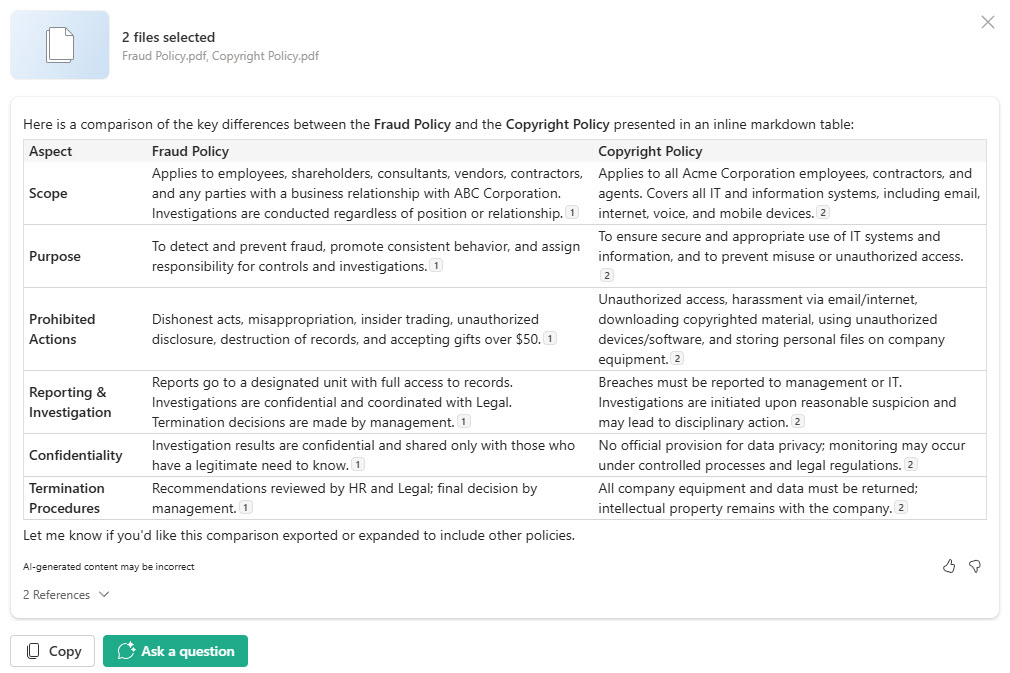
- Contract comparisons: Legal compares two or three vendor agreements and sees differences in one table
- Version checks: spot what changed between a draft and a final file saved separately
- Onboarding packets: new hires ask questions of a folder of guides instead of emailing a colleague
- Audit and compliance prep: pull key dates, owners, and obligations out of a batch of files quickly
- Commuter-friendly briefings: turn a report into an audio overview and listen instead of reading
Benefits
- No setup required: the actions appear in every modern document library once users are licensed
- Work across files: summarize or compare up to 5 files in a single action
- Answers in plain language: ask a question and get a response grounded in the selected documents
- Respects permissions: Copilot only reads files the user can already open
- Faster decisions: understand a document without opening it and scrolling through it
- Gentle path to AI adoption: familiar file menus make Copilot feel like part of SharePoint, not a new tool
How It Works
- Select, then act: pick one or more files and choose an action from the AI actions button or the file’s More actions menu
- Summarize: produces a summary of the selected files, optionally focused on a topic you name
- Compare: lines files up side by side and lists differences in title, author, dates, key participants, and content
- Ask a question: opens a chat grounded only in the selected files for follow-up questions
- Create an FAQ: drafts question-and-answer content from the file’s contents
- Get an audio overview: creates a narrated recap in Summary style (one voice) or Podcast style (two hosts)
Key Considerations
- Licensing: users need a Microsoft 365 Copilot license, or the organization must turn on pay-as-you-go billing for SharePoint AI
- Clean permissions first: Copilot surfaces anything a user can open, so oversharing becomes visible fast
- Results are not saved: summaries and comparisons live in the chat pane unless someone copies them out
- Verify before relying: AI output varies with file content and should be checked before it is shared
- Training still matters: users get better results when they learn to ask specific, detailed questions
- Features keep changing: Microsoft rolls out and renames Copilot actions often, so menus shift over time
Limits and Nuances
- Five-file ceiling: Summarize and Compare handle a maximum of 5 files per request
- Supported file types: Word, PowerPoint, Excel, and PDF; images and videos are not supported
- Audio overview rules: needs at least 200 words, English files only, and cannot be saved from encrypted files
- Not a library-wide search: actions work on the files you select, not on an entire library
- Modern experience only: the actions do not appear in classic libraries or pages
- Output varies: the same prompt can return slightly different wording each time
Common Questions About Copilot Actions
What are Copilot Actions in SharePoint?
Copilot Actions are the built-in AI commands in modern SharePoint document libraries, labeled AI actions in the Microsoft interface. After selecting one or more files, users can summarize them, compare them, ask a question about them, create an FAQ from them, or get an audio overview. Everything runs inside the library, so there is nothing to build, install, or code. Results open in the Copilot chat pane next to the files.
How many files can Copilot summarize or compare at once?
Summarize and Compare both work on up to 5 files per request. A single file works too for Summarize. For Compare, Copilot returns a table of differences such as title, author, created and modified dates, location, key participants, and a content summary for each file. Anything beyond five files needs to be split into smaller batches, or handled by a Copilot agent scoped to a library or folder instead.
What is the difference between Summarize and Ask a question?
Summarize produces a general overview of the selected files, and it can be focused on a topic you name. Ask a question is open-ended: it starts a chat grounded in those same files, so you can request a specific date, clause, figure, or comparison. Most people start with Summarize to get oriented and then switch to Ask a question for the details they actually need.
How does the audio overview work?
The audio overview turns a document into a narrated recap. Summary style uses a single AI narrator to cover the key points, and Podcast style uses two AI hosts in a conversational format. The file needs at least 200 words, the feature supports English files only, and generation can take a few minutes. The finished audio can be saved to OneDrive, unless the source file is encrypted.
Why can I not see Copilot Actions in my document library?
The most common reason is licensing: each user needs a Microsoft 365 Copilot license, unless the organization has turned on pay-as-you-go billing for SharePoint AI. The library also has to use the modern experience, and the selected file has to be a supported type such as Word, PowerPoint, Excel, or PDF. Images and videos are not supported. Microsoft also rolls these actions out gradually, so some tenants receive them later than others.
When should I use a Copilot agent instead of Copilot Actions?
Copilot Actions are best for quick, one-off work on a handful of files. When people keep asking questions of the same library, pages, or list, a Copilot agent scoped to that content is the better fit because it covers far more than five files and can be shared with a team. Greg Zelfond, the consultant behind LookBook 365, helps organizations decide where each fits, clean up permissions before Copilot goes live, and train staff to get reliable answers.