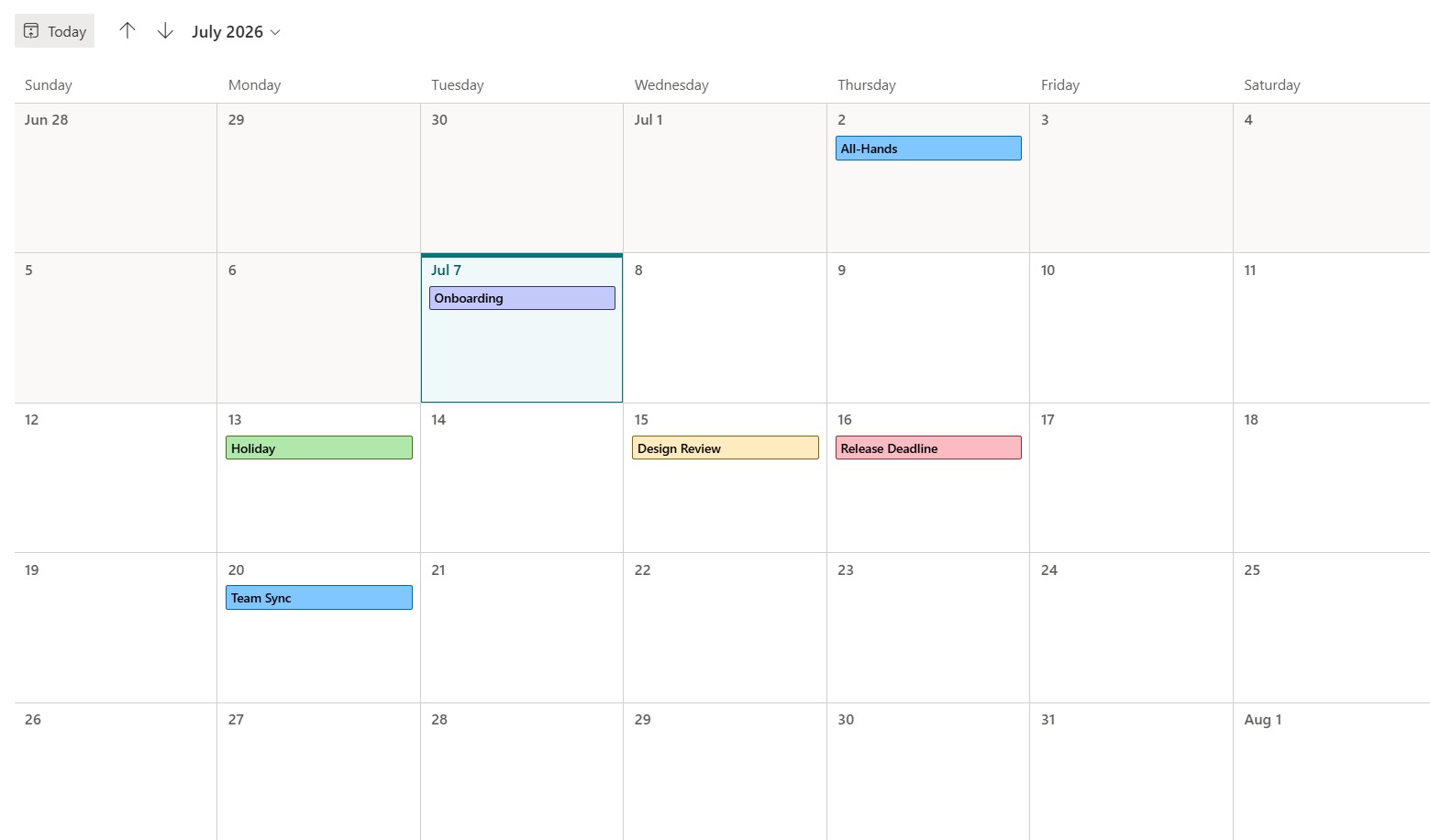
Color-Coded Events (View JSON)


Overview
- Colors each calendar event by its category value
- Background, border, and text color all key to the category
- A matching color is used when an event is selected
- Makes a busy calendar readable by type at a glance
- Applied as calendar view formatting JSON, so it changes nothing about the events
- Works on any choice column, and the colors are easy to adapt
Common Use Cases
- Team or department calendars
- Event and activity calendars
- Training and meeting schedules
- Editorial or content calendars
- Room or resource bookings
- Any calendar with a category column
Details
- Design Pattern: Dates & Time
- Format Scope: View
Required Columns
| Display name | Column type | Internal name |
|---|---|---|
| Title | Single line of text | [Title] |
| Event Date | Date and time | [EventDate] |
| Category | Choice | [Category] |
Prerequisites
- Build a list with these columns before you paste the JSON.
- Populate the list with data, giving each item a date in EventDate.
- Internal column names (in brackets) must match the JSON exactly.
How to Apply JSON code
- Create a Calendar view on the list (view dropdown at the top right, Create new view, set the layout to Calendar, choose EventDate as the date, then Create).
- Open the view dropdown again and choose Format current view.
- In the Apply formatting to dropdown choose Month, switch to Advanced mode, paste the JSON below, and click Save.
JSON Code
{
  "$schema": "https://developer.microsoft.com/json-schemas/sp/v2/calendar-formatting.schema.json",
  "additionalEventClass": "=if([$Category] == 'Meeting' && @isSelected == false, 'sp-css-backgroundColor-BgLightBlue sp-css-color-BlackText sp-css-borderColor-BlueText ms-fontWeight-semibold', if([$Category] == 'Meeting' && @isSelected == true, 'sp-css-backgroundColor-BlueText sp-css-color-WhiteText ms-fontWeight-semibold', if([$Category] == 'Training' && @isSelected == false, 'sp-css-backgroundColor-BgLightPurple sp-css-color-BlackText sp-css-borderColor-DarkPurpleText ms-fontWeight-semibold', if([$Category] == 'Training' && @isSelected == true, 'sp-css-backgroundColor-BgPurple sp-css-color-WhiteText ms-fontWeight-semibold', if([$Category] == 'Review' && @isSelected == false, 'sp-css-backgroundColor-BgGold sp-css-color-BlackText sp-css-borderColor-BrownText ms-fontWeight-semibold', if([$Category] == 'Review' && @isSelected == true, 'ms-bgColor-sharedOrange10 sp-css-color-BlackText ms-fontWeight-semibold', if([$Category] == 'Holiday' && @isSelected == false, 'sp-css-backgroundColor-successBackground50 sp-css-color-BlackText sp-css-borderColor-GreenText ms-fontWeight-semibold', if([$Category] == 'Holiday' && @isSelected == true, 'ms-bgColor-green sp-css-color-WhiteText ms-fontWeight-semibold', if([$Category] == 'Deadline' && @isSelected == false, 'sp-css-backgroundColor-BgCoral sp-css-color-BlackText sp-css-borderColor-RedText ms-fontWeight-semibold', if([$Category] == 'Deadline' && @isSelected == true, 'sp-css-backgroundColor-redDark sp-css-color-WhiteText ms-fontWeight-semibold', if(@isSelected == false, 'sp-css-backgroundColor-neutralBackground20 sp-css-color-BlackText ms-fontWeight-semibold', 'sp-css-backgroundColor-neutralTertiary sp-css-color-WhiteText ms-fontWeight-semibold')))))))))))"
}Common Questions About the Color-Coded Events
What is the Color-Coded Events design built with?
It is built with a standard Microsoft List (SharePoint list) and calendar view formatting expressed in JSON. There is no custom development, no SPFx solution, and no third-party tools. It is the kind of clean, maintainable formatting Greg Zelfond builds for teams that want a readable calendar without ongoing development overhead.
What column does it need?
It reads a category choice column on each event, such as Meeting, Training, Review, Holiday, or Deadline. The JSON refers to that column by its internal name, so the JSON and the column must line up – here it is Category – and you can use whatever categories your calendar needs.
Can I put extra content, like an icon or owner, inside each calendar event?
Not in a calendar view. Calendar formatting can color-code events by a value – background, border, and text color – but it cannot add custom content inside the event the way list and gallery formatting can. If you need richer event cards, a Gallery or List view is the better fit, which Greg can set up alongside the calendar.
Does this design use any custom development or third-party tools?
No. It uses only out-of-the-box SharePoint calendar view formatting, which Microsoft supports natively. That keeps it stable and easy to maintain, and nothing breaks when SharePoint is updated. Out-of-the-box is the only way Greg builds, so you can own and extend the design yourself for years.
If LookBook 365 is code-free and out-of-the-box, why does this example include JSON?
Because SharePoint formatting JSON is not custom code – it is a native configuration feature built into lists and libraries. It is declarative: it only describes how an existing view looks, and cannot run scripts, reach external services, or change your data. Nothing is deployed and nothing breaks when Microsoft updates SharePoint, and you can edit or remove it anytime. That is why LookBook 365 treats it as out-of-the-box and low risk.
Can Greg build calendar formatting like this for our team?
Yes – this is exactly the kind of work Greg Zelfond does. As an independent SharePoint consultant and Microsoft MVP, he designs out-of-the-box list and library formatting like this so your team can read and maintain it without a developer. Reach out through the contact page to talk about your calendars.