New Document (Approval)



Overview
- A native SharePoint capability that adds a full review-and-sign-off workflow to any document library with a single toggle
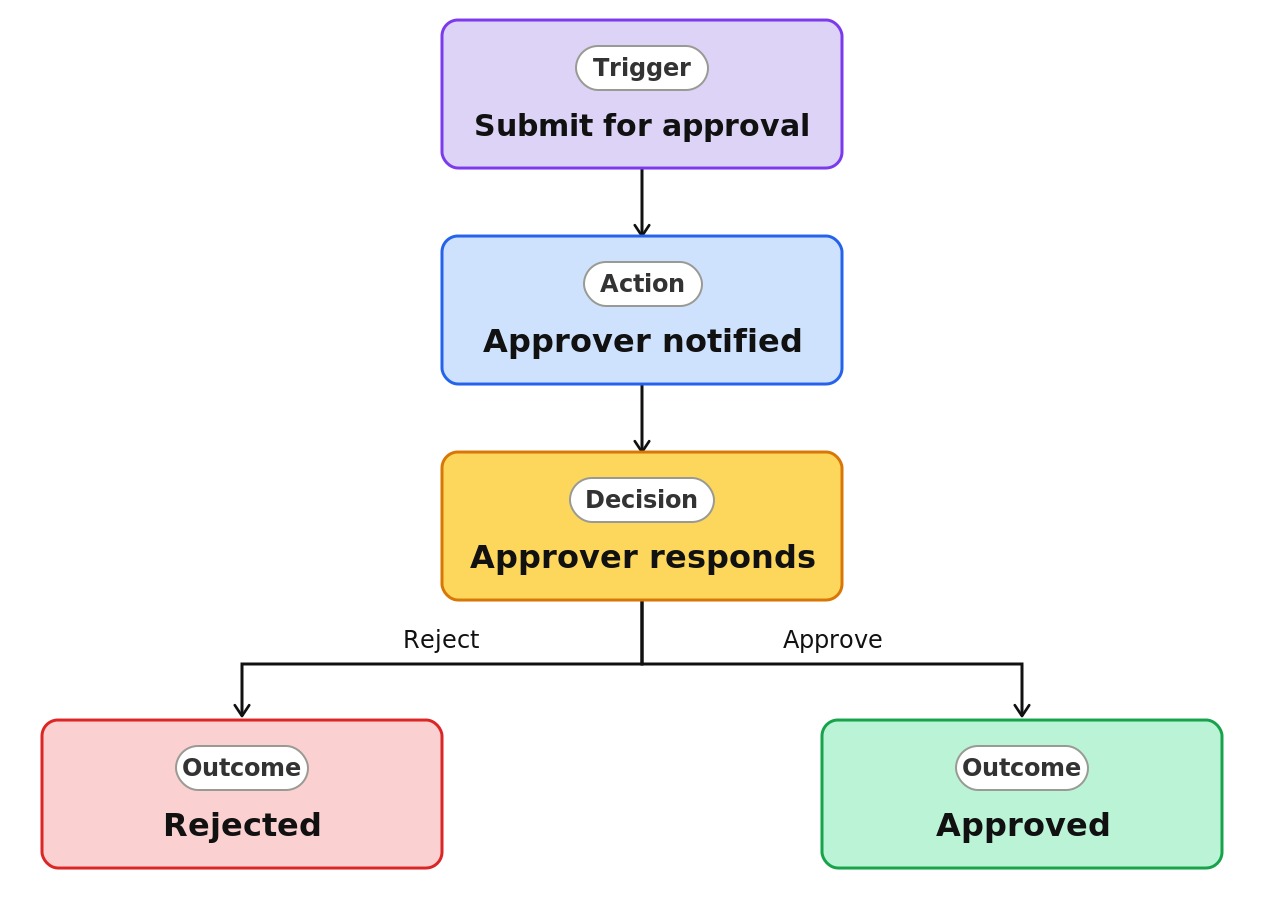
- Adds an Approval status column that tracks each document as Requested, Approved, or Rejected
- Routes each request to the approvers you name and notifies them in the Microsoft Teams Approvals app
- Lets submitters follow up to send a reminder, or cancel a request that is no longer needed
- Requires no Power Automate flow, no custom development, and nothing to deploy or maintain
Common Use Cases
- Signing off company policies before they are published to the intranet
- Approving contracts, statements of work, or vendor agreements before they are sent
- Reviewing marketing or design assets before they go live
- Approving expense or purchase documents against a budget
- Clearing standard operating procedures or quality documents in a regulated environment
- Getting management sign-off on reports, proposals, or board materials
Common Questions About Document Approval
If LookBook 365 is code-free and out-of-the-box, why does it include this workflow example?
The approval itself is a native SharePoint feature you switch on, not custom code or a bespoke Power Automate build. It runs entirely inside Microsoft 365, keeps its data in the same document library, and survives Microsoft updates. You get a real sign-off workflow for policies and contracts with no development and no maintenance overhead.
Do I need Power Automate or a license add-on to use SharePoint approvals?
No. This approval workflow is included with SharePoint Online and Microsoft 365. It uses the built-in Teams Approvals app behind the scenes, so there is nothing extra to buy or install. If your process later needs conditional routing or multi-stage logic, that is where a tailored Power Automate build comes in, and I can set that up for you.
Can I require more than one approver?
Yes. When you submit a document you can list several approvers and choose whether the first response decides the outcome, whether every approver must approve, and in what order they are asked. For anything more complex, such as routing by amount or department, a custom flow is the next step.
What happens if someone edits the document while it is waiting for approval?
Editing the file or changing its metadata while the status is Requested cancels the approval request and shows a warning, so approvers never sign off on a version that has since changed. It is a helpful guardrail, though it does mean you resubmit after edits.
Can I see who approved a document and when?
Yes. Alongside the Approval status column you can show the Approvers, Responses, and Approval Creator columns, which record who was asked, who approved or rejected, and who submitted the document. Together they give you a built-in audit trail with no extra setup.
Can you set this up and train my team?
Absolutely. I help organizations turn everyday SharePoint features like approvals into clean, documented processes your own team can run, with no custom code and no ongoing dependency. If your approval needs outgrow the out-of-the-box feature, I can design a Power Automate workflow that fits.