World Clock Web Part

Benefits
- Helps coordinate across time zones
- Useful for global project and support teams
- Improves awareness of team availability
- Adds utility to intranet homepages
- Customizable cities and labels
Settings
Web part level:
- Add a location: start typing a city name and pick the match from the suggestions; repeat to add more clocks, each updating live inside the one web part.
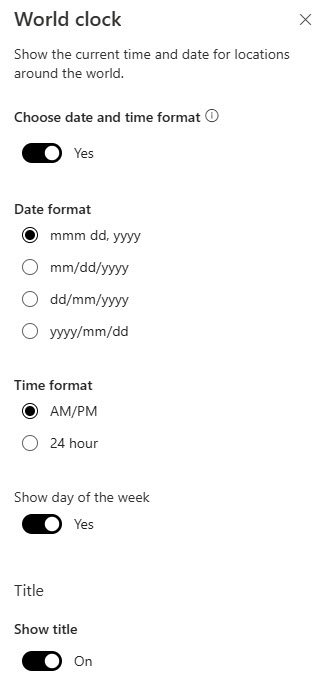
- Choose date and time format: turn this on to unlock the date format (for example mm/dd/yyyy or mmm dd, yyyy) and the AM/PM versus 24-hour time choice; otherwise the defaults apply.
- Show day of the week: a Yes/No choice, off by default, shown next to the time when on.
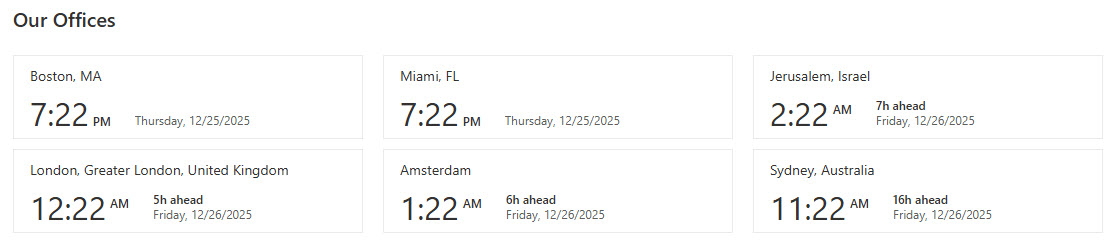
- Current time per location: a live clock for each city or office, updating automatically.
- Custom location labels: each clock can carry your own display name, such as London HQ instead of just London.
Per location:
- Location display name: turn on Change location display name and time zone, then type the label you want shown.
- Time zone: pick the time zone from a list, independently of the display name.
Limits and Nuances
- The display name and the time zone are independent settings: if the location search cannot find your exact town, pick a nearby city, then rename the label and correct the time zone manually.
- The date and time format is set by the page author and applies to every visitor: there is no personal toggle like the Weather web part‘s Fahrenheit/Celsius switch.
- Microsoft does not document a hard limit on the number of clocks: readability is the practical limit, so stick to the offices your people actually work with.
- There is no analog clock face or styling option: the look is fixed, and colors follow the site theme.
World Clock vs. the Alternatives
- World Clock vs. Weather: World Clock shows the current time across offices; Weather shows current conditions for fixed locations. Global intranet homepages often pair them in the same section.
- World Clock vs. Text: a Text web part can list office hours, but it never updates. World Clock is live, so it is the right choice whenever the actual current time matters.
- World Clock vs. Embed: the Embed web part can host a third-party clock widget with analog faces and custom styling, but it depends on an external service and admin-approved domains. World Clock works out-of-the-box.
Common Questions About the World Clock Web Part
How many locations can the World Clock web part show?
You can add multiple clocks to a single World Clock web part – one per location – and Microsoft does not document a hard maximum. In practice, readability is the real limit: a row of four to six clocks scans well, while a dozen turns into noise. List the offices your people actually coordinate with and leave it there.
Can I rename a location in the World Clock web part?
Yes. Each clock has a Change location display name and time zone option. Turn it on and you can type any label you like – London HQ, East Coast Support, Tokyo Office – while the time zone stays accurate. It is a small touch that makes the web part read like your organization instead of a generic city list.
What if the location search cannot find my city?
This is where the per-clock overrides earn their keep. Add the nearest city the search does recognize, then change the display name to your actual town and pick the correct time zone from the list. Because the label and the time zone are independent settings, the clock ends up showing exactly the right name and exactly the right time.
Can visitors switch between 12-hour and 24-hour time for themselves?
No. The page author chooses the time format, the date format, and whether the day of the week appears, and those choices apply to everyone who views the page. Unlike the Weather web part, where each visitor can flip Fahrenheit and Celsius for their own view, the World Clock display is the same for all users.
What does the World Clock web part need to work?
Nothing beyond modern SharePoint. It is a built-in SharePoint Online feature in Microsoft 365, so you just add it to a page and choose your locations – no setup, no external service, and no custom code to maintain. Everything described on this page applies to the modern SharePoint Online experience.
Where does the World Clock web part work best on an intranet?
On the homepage of any organization with offices in more than one time zone – usually in a narrow column or a band near the top, often next to a Weather web part showing the same locations. The global intranet designs on LookBook 365 use this exact out-of-the-box web part with a custom theme – the only way Greg Zelfond builds. World Clock Web Part Example World Clock Web Part Settings