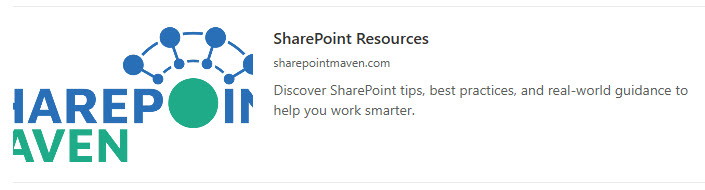
Link Web Part

Benefits
- One resource, properly featured: a single link gets its own block on the page instead of hiding inside a paragraph.
- Visual previews: the web part fetches a preview of the destination automatically when the site supports it.
- Readable display text: replace the raw URL with a custom title so the page reads naturally.
- Works for almost anything: internal pages, external websites, documents, videos, and images are all fair game.
- Viewer-friendly behavior: choose whether the link opens in the same tab or a new one, so people do not lose their place.
- Lightweight by design: one URL is all it takes, making it the simplest way to feature a key resource on a page.
Settings
- Address: paste or type the URL of the page, video, image, or document.
- Display text: replace the raw URL with a custom title.
- Preview: keep the auto-fetched preview or remove it.
- Open in a new tab: choose whether the link opens in the same tab or a new one.
- Internal pages: any page or news post inside your SharePoint environment.
- External websites: public sites outside your organization.
- Documents: link straight to a file, with a preview when available.
- Videos and images: the web part fetches a visual preview for supported destinations.
Limits and Nuances
- One link per web part: if you need a set of links, use the Quick Links web part instead of stacking Link web parts.
- Previews only appear when the destination provides preview data: if nothing shows, the link still works; just remove the empty preview.
- You cannot upload your own preview image: the destination site controls the thumbnail. For a custom visual, use the Image web part with a link or the Hero web part.
- No previews in certain government clouds: links external to your site will not show a preview in GCC High, DoD, and 21Vianet environments.
- The web part does not check permissions: viewers can always click the link, but they still need access to whatever it points to.
Link Web Part vs. the Alternatives
- Link vs. Quick Links: Link shows one URL with a rich preview; Quick Links presents a curated set of many links in layouts like buttons, tiles, and compact lists.
- Link vs. Hero: Hero is built to visually promote up to five hand-picked items with large imagery; Link is a single lightweight pointer.
- Link vs. Button: the Button web part gives a clear call-to-action label; Link gives a preview card of the destination.
- Link vs. a hyperlink in the Text web part: use an inline hyperlink when the link belongs inside a sentence; use the Link web part when it deserves its own block on the page.
Common Questions About the Link Web Part
What is the Link web part in SharePoint?
The Link web part adds a single clickable link to a SharePoint page, pointing to an internal page, an external website, a video, an image, or a document. When the destination supports it, the web part automatically displays a visual preview alongside the link text. It is the simplest out-of-the-box way to feature one important resource on a page.
What is the difference between the Link web part and Quick Links?
The Link web part holds exactly one link, with an automatically fetched preview of the destination. Quick Links holds a whole collection of links and offers multiple layouts such as buttons, tiles, and compact lists, with custom icons and thumbnails. Use Link to spotlight a single resource, and Quick Links to build navigation menus or resource lists on a page.
Why does my link not show a preview?
Previews only appear when the destination site provides preview data the web part can fetch. Many internal documents and some external sites do not, and in GCC High, DoD, and 21Vianet environments external links never show previews. The link itself still works perfectly – simply remove the empty preview and keep just the clean link text.
Can I change the link text or open the link in a new tab?
Yes to both. You can replace the raw URL with custom display text so the page reads naturally, and the web part lets you choose whether the destination opens in the same tab or a new one. A good practice is to open external websites in a new tab so people do not lose their place on the intranet.
What can the Link web part point to?
The Link web part points to a single internal page or news post, an external website, a document, a video, or an image. It fetches a visual preview when the destination supports it. If you need to feature several links at once, the practical alternatives are the Quick Links web part, a hyperlink inside the Text web part, or an Image web part with a link attached, depending on how prominent the link needs to be.
When should I use the Link web part instead of Hero or Button?
Use Link for a quick, lightweight pointer with an automatic preview – perfect inside a column of supporting content. Use Hero when you want large, designed imagery promoting up to five key items, and Button when you need a clear call-to-action. The intranet examples on LookBook 365 mix these deliberately, the way Greg Zelfond builds every page – entirely out-of-the-box, no custom code. Link Web Part Embedded on a Page Link Web Part Settings