People Web Part

Benefits
- Always-current details: photos, names, and job titles pull live from Microsoft 365 profiles, so cards never go stale.
- Curated, not automatic: you hand-pick exactly who appears and in what order, ideal for leadership pages and key contacts.
- One click to full contact info: each card opens the person’s complete Microsoft 365 profile card with contact details and org info.
- Three layouts for any page: Small for compact contact strips, Medium for team introductions, Large for featured leaders.
- Room for context: Medium and Large cards take an optional tagline and profile link.
Settings
Web part level:
- Title: replace the default People profiles text with your own heading.
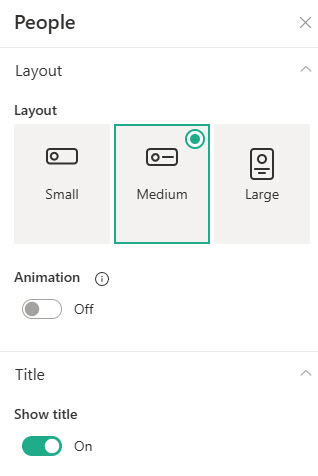
- Layout: Small, Medium, or Large.
- Small: photo plus name (or email); best for compact contact strips and page sidebars.
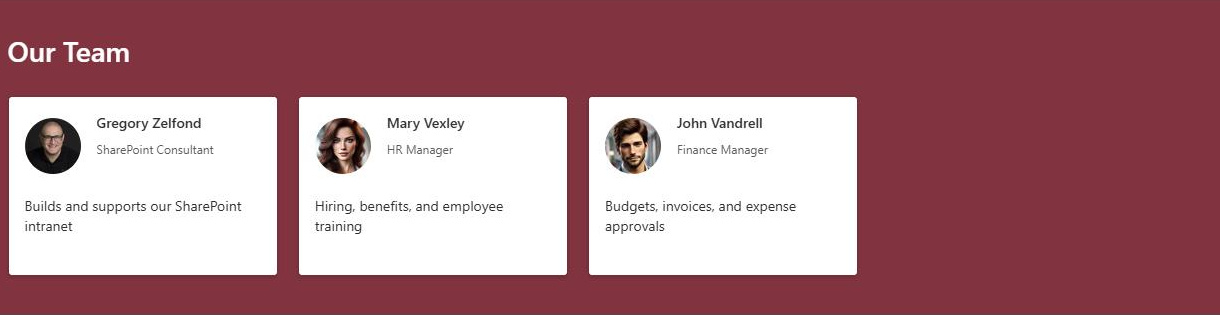
- Medium: adds the job title, an optional tagline of up to 50 characters, and an optional profile link; best for team introductions.
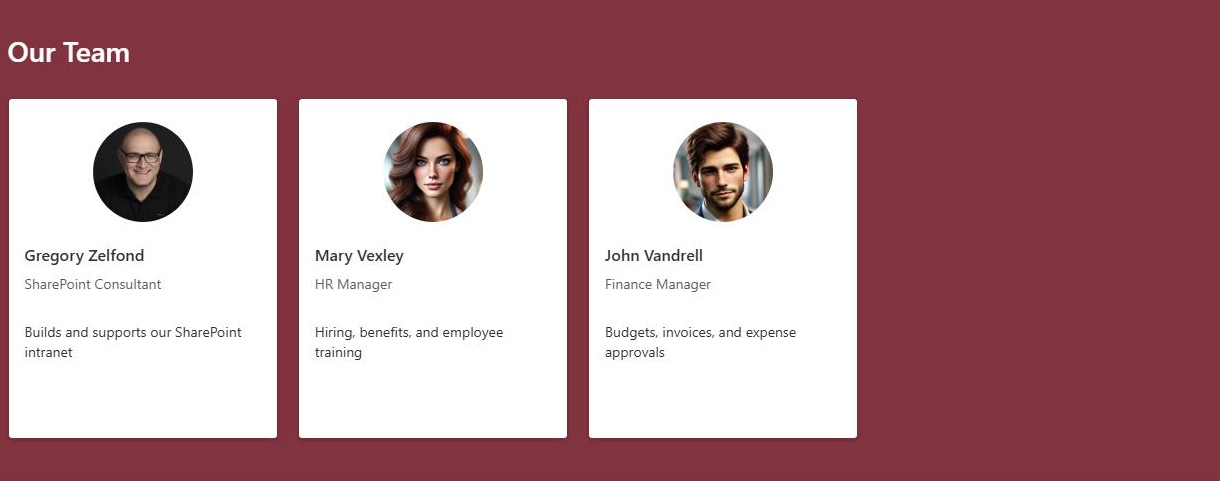
- Large: the biggest card format with the same optional text fields; best for leadership pages and featured contacts.
Per person:
- Add by name, partial name, or email: the web part matches people against your organization’s directory.
- On Medium and Large cards: an optional tagline (up to 50 characters) and an optional profile link.
- Reorder freely: people can be rearranged by drag and drop or with keyboard shortcuts.
Limits and Nuances
- The list is static: it does not sync with a group, team, or department; when someone leaves or changes roles, a page editor must update the web part by hand.
- Names, photos, and job titles come from Microsoft 365 profiles: if a title is wrong on the card, fix the profile data, not the web part.
- People are picked from your organization’s directory: external guests often do not resolve or display properly.
- Photos appear only when the person has a profile photo set: otherwise a placeholder shows, so a photo cleanup pays off before launch.
- Clicking a card opens the person’s full Microsoft 365 profile card with contact details and org info: there is nothing to configure for this.
- Audience targeting is not available on this web part: everyone who can see the page sees the same people.
People vs. the Alternatives
- People vs. Organization Chart: Organization Chart builds a reporting hierarchy automatically from directory data, starting from one person; People is a hand-picked, flat list. Use Organization Chart for structure, People for curated contacts.
- People vs. a Contacts list: a SharePoint list scales to hundreds of contacts with custom columns, views, and search; People is best for a small, curated set of live profile cards.
- People vs. the Text web part: names typed into a Text web part go stale silently; People cards pull current photos and titles from the directory and open a live profile on click.
- People vs. Quick links: Quick links can point to people-related pages but shows no profile data; People shows who the person is before anyone clicks.
Common Questions About the People Web Part
What does the People web part display on the page?
Each person appears as a card with their photo, name, and – on the Medium and Large layouts – their job title, an optional tagline of up to 50 characters, and an optional link. Clicking a card opens the person’s full Microsoft 365 profile card with contact details and organizational information. It is the cleanest out-of-the-box way to answer who is on the team and how to reach them.
Where does the People web part get its information?
From Microsoft 365 user profiles, which are fed by your organization’s directory (Microsoft Entra ID). The web part automatically shows each person’s current photo, name, and job title. That cuts both ways: cards always reflect the directory, so if a job title or photo is wrong on the page, the fix is to correct the underlying profile data – there is no way to override it inside the web part.
Does the People web part update automatically when the team changes?
No. You pick each person by hand, and the list stays exactly as you left it – it does not sync with a Microsoft 365 group, a Teams team, or a department. When someone joins, leaves, or changes roles, a page editor needs to add or remove them manually. Profile details like photos and titles do update automatically; it is only the roster itself that is static.
What is the difference between the Small, Medium, and Large layouts?
Small shows just the photo and name – ideal for a compact contact strip. Medium adds the job title plus an optional 50-character tagline and a profile link, which suits most team pages. Large is the most prominent card format with the same optional text fields, suited to leadership and featured contacts. You can switch layouts at any time without re-adding anyone.
Can I add external guests or people outside my organization?
The web part picks people from your organization’s directory, so employees resolve instantly by name or email. External guests are hit or miss – accounts outside the directory often fail to resolve or display incomplete cards without photos or titles. For partner or vendor contacts, a SharePoint contacts list with custom columns is usually the more reliable choice.
When should I use the People web part instead of the Organization Chart web part?
Use People when you want a curated set – the project team, department leads, key contacts – in an order you control. Use Organization Chart when you want to show reporting structure, since it builds the hierarchy automatically from directory data. The department site designs on LookBook 365 use both, always out-of-the-box with a custom theme – the only way Greg Zelfond builds. People Web Part Small Layout People Web Part Medium Layout with extra text People Web Part Expanded User Profile Card People Web Part Settings