Page Properties Web Part

Benefits
- Displays page metadata directly on the SharePoint page for full visibility
- Enhances transparency, structure, and content organization
- Great for news pages, structured templates, and categorized content
- Ideal for employee handbooks, wiki-style knowledge bases, and SOP libraries
- Automatically updates in real time as metadata changes
Settings
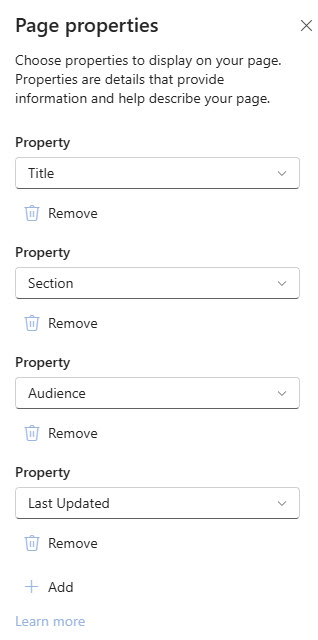
- + Add: adds a property slot to the web part.
- Property: a dropdown listing the supported columns from the Site Pages library; pick the one to display.
- Remove: takes a property off the web part without deleting the column or its value.
- Display order: properties appear in the order you add them, so add them in the sequence you want shown.
- Single line of text and Number: short free-form values such as a document owner’s title or reference number, and numeric values such as a version number or a review cycle in days.
- Choice: a fixed set of options, such as Department, Category, or Status – the workhorse for structured pages.
- Date and time, and Person or Group: effective, review, and last-audited dates, plus a page owner or subject matter expert shown with their profile.
- Managed Metadata: terms from the term store, ideal when the same taxonomy is used across many sites.
Limits and Nuances
- Only six column types are supported: Single line of text, Choice, Number, Date and time, Person or Group, and Managed Metadata. Other types, such as multiple lines of text or Yes/No, will not appear in the Property dropdown.
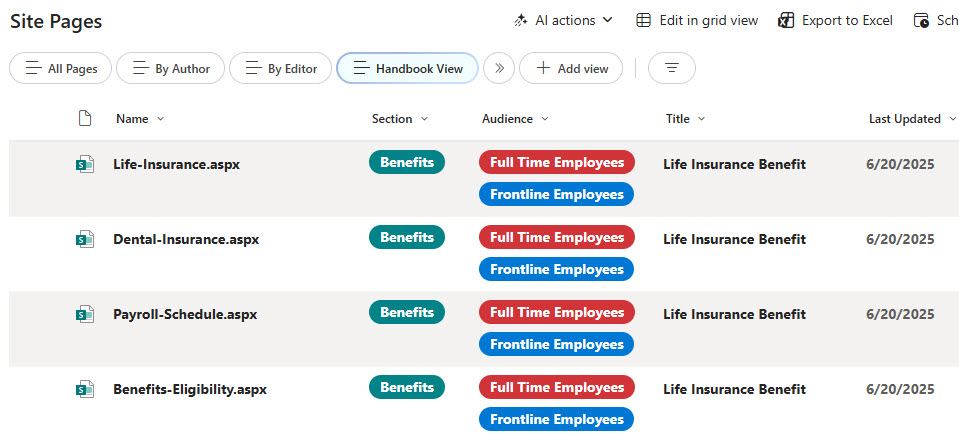
- Custom properties are really columns on the Site Pages library: create the column there first, then it shows up in the web part.
- The web part shows the current page’s values only: there is no option to point it at a different page or a document.
- Visitors see the values read-only: the values are edited through the page details or the Site Pages library, not in the web part.
- Required columns double as governance: mark a column as required in the Site Pages library and authors cannot publish a page without filling it in.
- Reusable metadata: the same page columns can filter the News and Highlighted Content web parts, so tag pages once and reuse the metadata to build dynamic rollups.
- The label shown on the page is the column name: rename the column if you want visitors to see friendlier wording.
Page Properties vs. the Alternatives
- Page Properties vs. a Text web part: typing ‘Owner: Jane’ into a Text web part goes stale the day Jane changes roles. Page Properties stays in sync with the library value, and that value is searchable and filterable.
- Page Properties vs. the title area byline: the title area already shows the author and published date automatically. Add Page Properties only when you need custom fields beyond those two.
- Page Properties vs. Highlighted Content filtering: Page Properties displays the metadata on one page; Highlighted Content and News use those same columns to roll up many pages. They are two halves of the same setup.
- Page Properties vs. the List web part: if the metadata describes a list item rather than the page itself, show the list instead. Page Properties is strictly about the page you are on.
Common Questions About the Page Properties Web Part
Where do the properties shown in the Page Properties web part come from?
From columns on the Site Pages library of the site. Every modern page is an item in that library, so any column you add there – Category, Page Owner, Review Date – becomes a property each page can carry. The web part simply displays the current page’s values for the columns you select, and it updates automatically whenever someone changes those values.
What column types does the Page Properties web part support?
Six types: Single line of text, Choice, Number, Date and time, Person or Group, and Managed Metadata. Other column types, such as multiple lines of text, Yes/No, or Hyperlink, are not supported and simply will not appear in the Property dropdown when you configure the web part. If a property you expect is missing, the column type is the first thing to check.
Can visitors edit the properties directly on the page?
No. The web part is a display surface – visitors see the values read-only. Editing happens through the page details or directly in the Site Pages library, and only by people with edit permissions on the page. That separation is healthy: the audience gets clean, consistent information, while authors manage the values in one controlled place.
Can the Page Properties web part show properties of another page or a document?
No, it always reflects the page it sits on – there is no setting to point it elsewhere. To surface metadata from documents, use a Document Library web part with the relevant columns in the view. To surface metadata from many pages at once, use the News or Highlighted Content web parts, which can filter and display pages by the very same page properties.
How are page properties used in real intranets and knowledge bases?
As the backbone of structured content. A policy library, for example, gives every page an Owner, a Category, and a Review Date – displayed through this web part so accountability is visible, and used to filter news and rollups. The knowledge base and SOP designs on LookBook 365 are built this exact way, with out-of-the-box web parts only, which is how Greg Zelfond builds every design.
Why is my column missing from the Property dropdown?
Two usual suspects. First, the column type – only Single line of text, Choice, Number, Date and time, Person or Group, and Managed Metadata columns are supported, so a Yes/No or multiple lines of text column never shows up. Second, the location – the column must exist on the Site Pages library of that site, not on some other list or on a different site. Page Properties Web Part Example Site Pages Properties Page Properties Web Part Configuration