Task List (Lists)

Overview
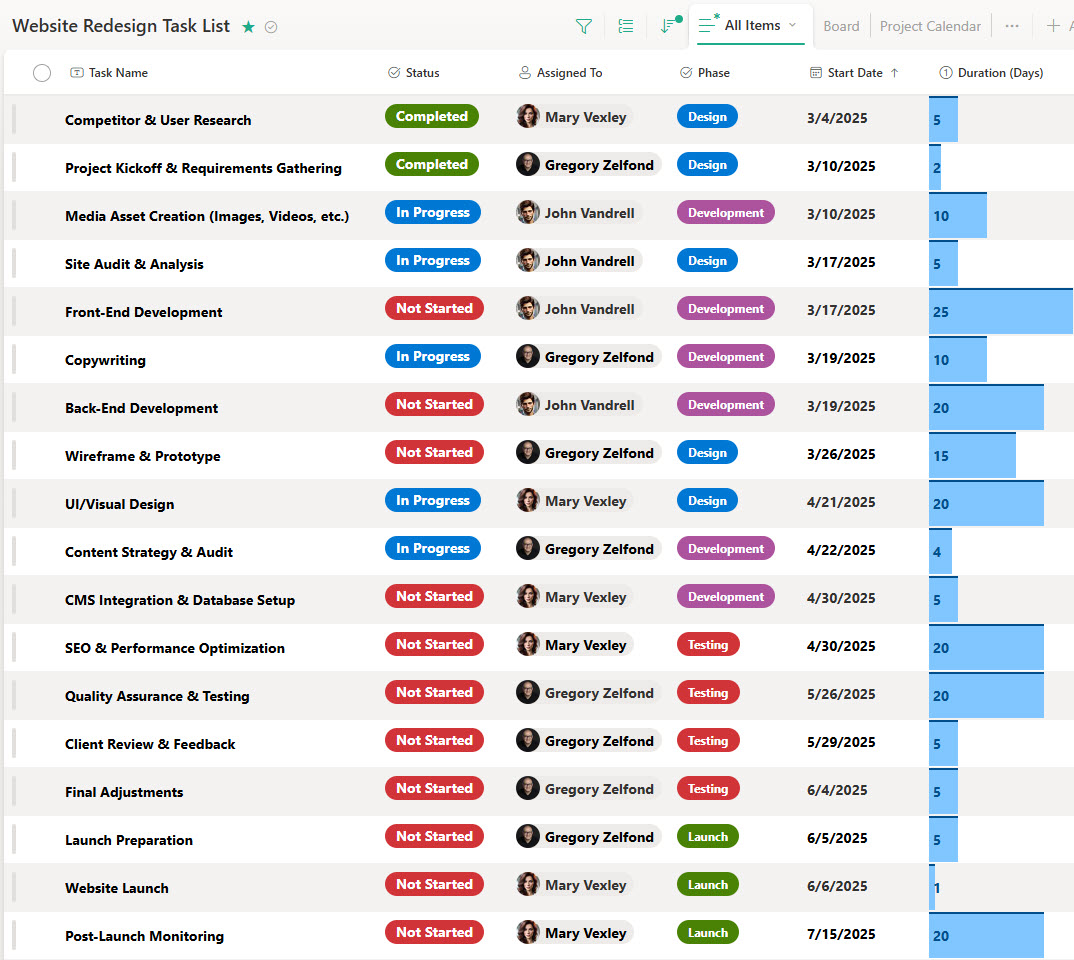
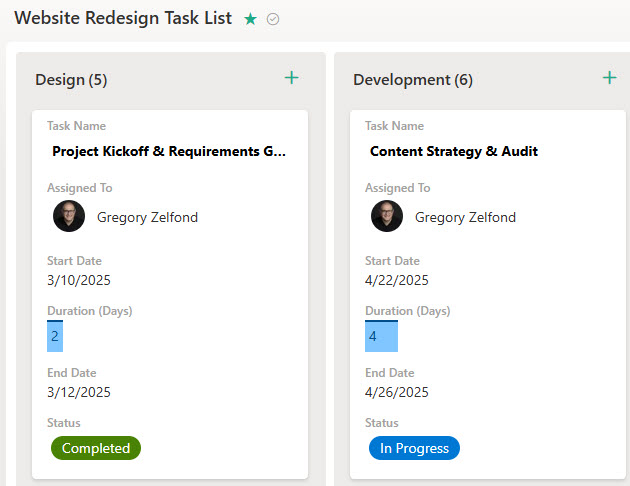
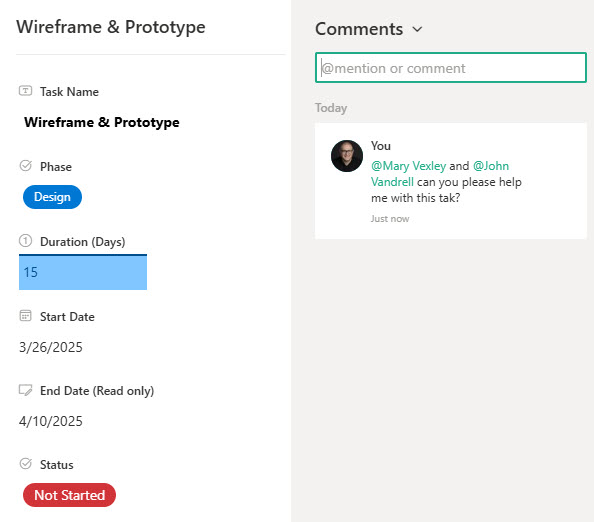
- Custom Columns: Track tasks with fields like Task Name, Assigned To, Status, Phase, Start/End Dates, and Duration
- Clear Status Tracking: Use a choice column to flag tasks as Not Started, In Progress, or Completed
- Flexible Assignment Options: Assign tasks manually or use views to group by owner or priority
- Easy Task Ownership: Quickly assign responsibilities and keep everyone accountable without complex permissions.
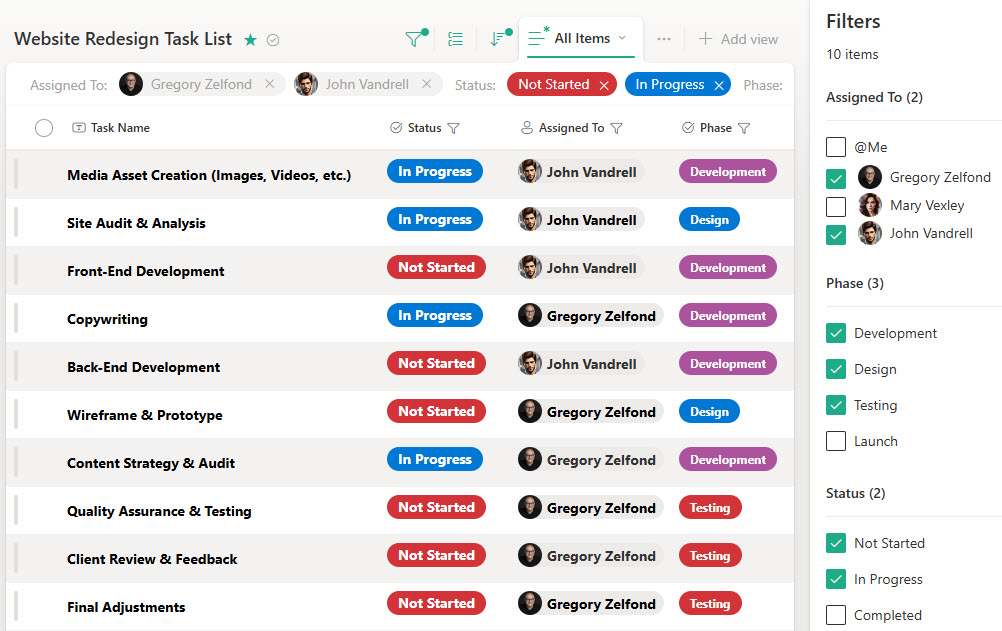
- Timeline-Friendly: Easily filter by date ranges to monitor deadlines and progress
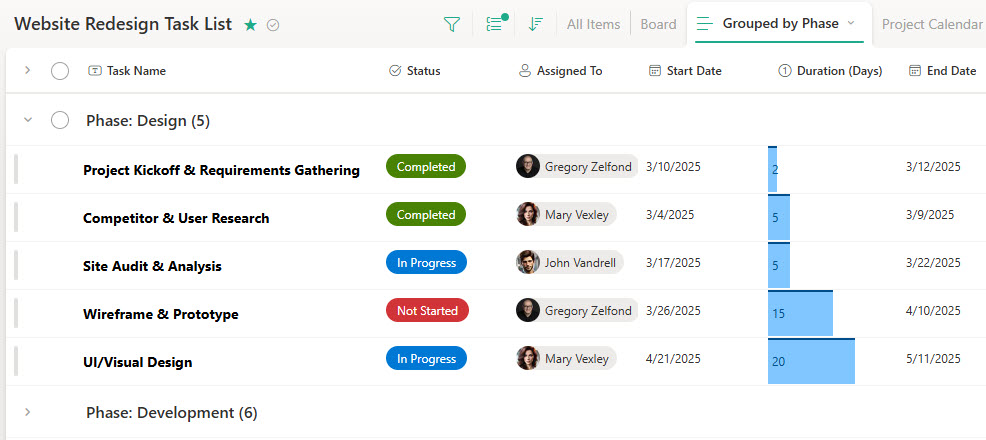
- Sort & Group: Group by status, assignee, or due date to fit your preferred view
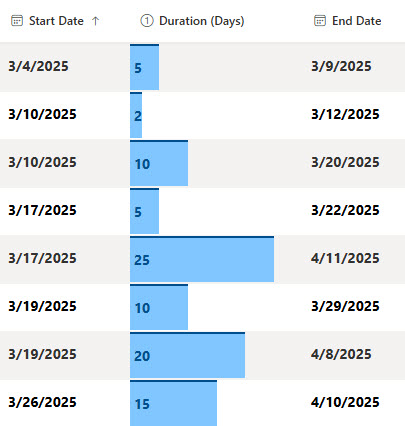
- Gallery View and Calculated Dates: tasks can be displayed as visual cards in a gallery view, and end dates can be calculated automatically from the start date and duration
Benefits
- Simple & Lightweight: Easy to set up and manage
- Customizable Views: Create views by assignee, due date, or project phase
- Custom Metadata: Create your own columns to track key task properties like priority, phase, department, or client, tailored to your needs
- Built-In SharePoint Integration: Native to SharePoint – no switching apps or interfaces
- No-Code & Spreadsheet-Free: Replace manual task trackers and avoid tool sprawl
Common Questions About This Task List
What is this Task List built with?
The task list is built entirely with Microsoft Lists, using custom columns, a choice column for status, filtering, grouping, calculated date columns, and multiple views. There is no custom code and no third-party project management software involved. It is the kind of clean, maintainable task tracker Greg Zelfond builds for teams that want simple task management inside SharePoint and Microsoft 365.
What’s included in the Task List?
The design includes custom columns for Task Name, Assigned To, Status, Phase, Start and End Dates, and Duration, with a choice column flagging tasks as Not Started, In Progress, or Completed. It features a main grid view, filtering by date ranges, a view grouped by phase, a calculated end date based on start date and duration, a gallery view of task cards, and a simple form for task entry and editing.
Does this design use any custom code or third-party tools?
No. Everything in this task list uses standard Microsoft Lists functionality available in SharePoint and Microsoft 365. That matters because out-of-the-box solutions are stable, secure, and easy to maintain – nothing breaks when Microsoft rolls out updates, and there are no third-party licenses to manage. Out-of-the-box is the only way Greg builds.
Can this Task List be customized for our projects?
Absolutely. The columns, choice values, views, and grouping can all be tailored to your projects and terminology – priority, department, client, or any other metadata your team tracks. Greg adapts the list to the way your team actually manages work – whether that means project phases, weekly workloads, or client deliverables – so the tracker fits your process instead of forcing a new one.
Can we create different views of the same task list?
Yes. Microsoft Lists lets the same task data be presented in many ways – a grid view for quick editing, views grouped by status, assignee, or phase, filtered views for specific date ranges, and a gallery view that shows each task as a visual card. Conditional formatting can highlight overdue items or color-code statuses, so each person sees the tasks in the format that works best.
Can Greg build this Task List for our organization?
Yes – this is exactly the kind of work Greg Zelfond does. As an independent SharePoint and Microsoft 365 consultant and Microsoft MVP, he designs and builds out-of-the-box task trackers like this one, tailored to your projects, teams, and metadata. If you want a lightweight task list your team will actually keep up to date, reach out through the contact page to get started.