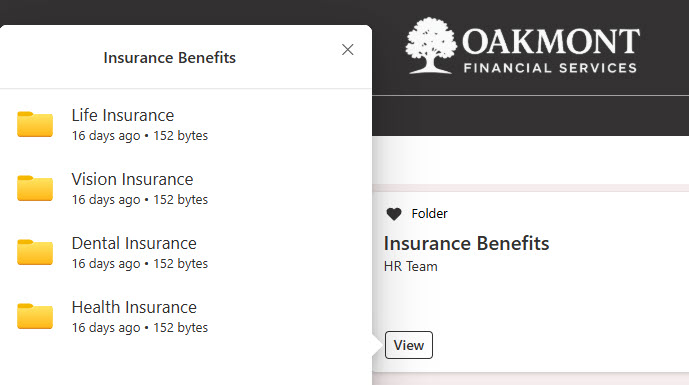
Dashboard Web Part

Benefits
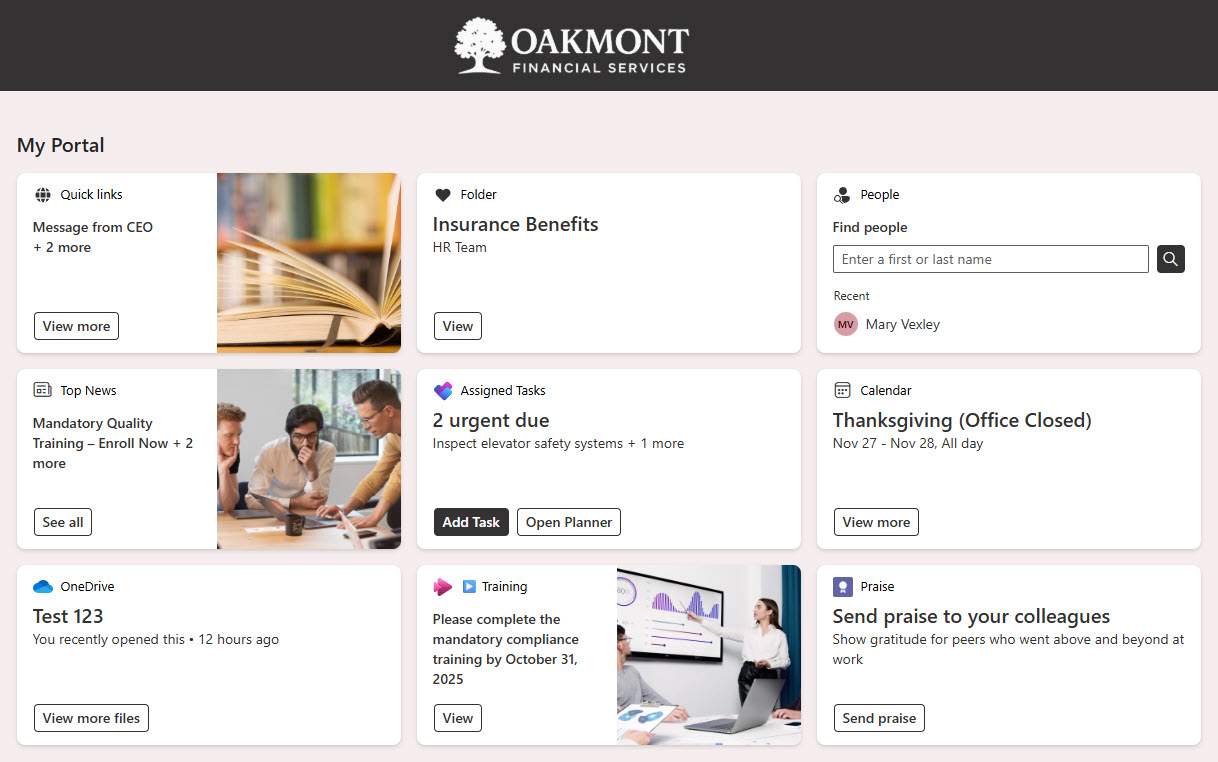
- One personalized front door: approvals, tasks, news, events, shifts, and people lookup surface in a single card stack on the page.
- Role-relevant by design: audience targeting shows each person only the cards that apply to them.
- Actionable, not just informational: cards link straight to pending approvals, assigned tasks, and everyday tools.
- Build once, show everywhere: the same dashboard powers the web part on SharePoint pages and Viva Connections in Teams and on mobile.
- Works on any site type: home, team, and communication sites can all run their own card-based dashboards.
Settings
Web part level:
- Maximum number of cards: a slider sets how many cards display at once; the rest sit behind a See all link.
- Title: the heading shown above the cards, edited directly on the page.
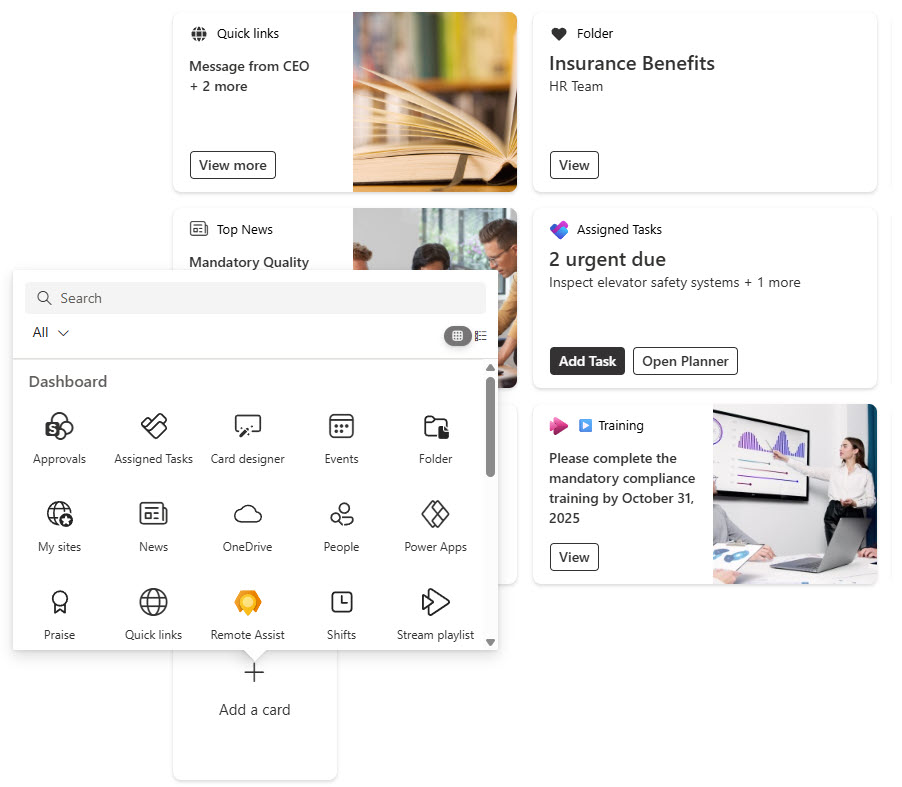
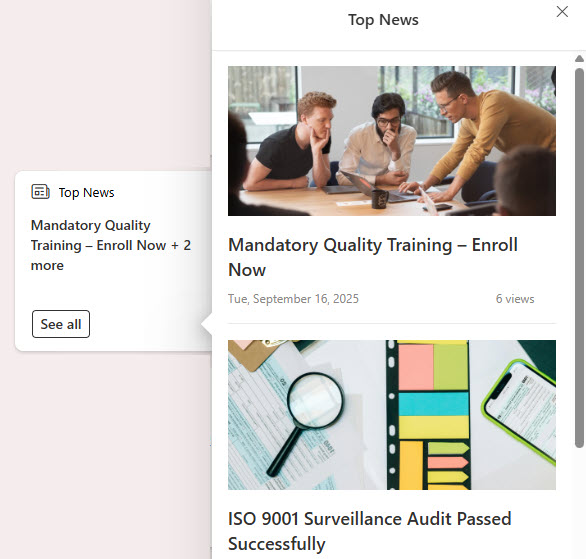
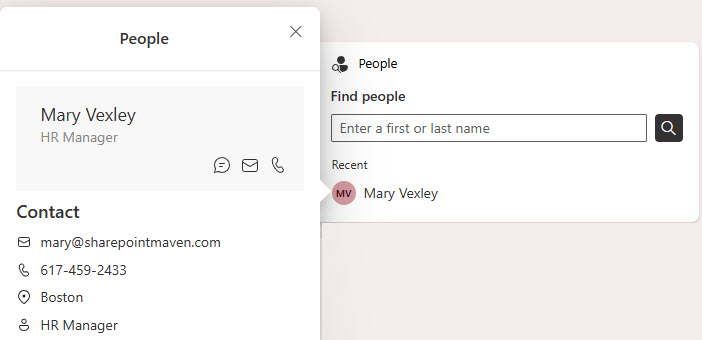
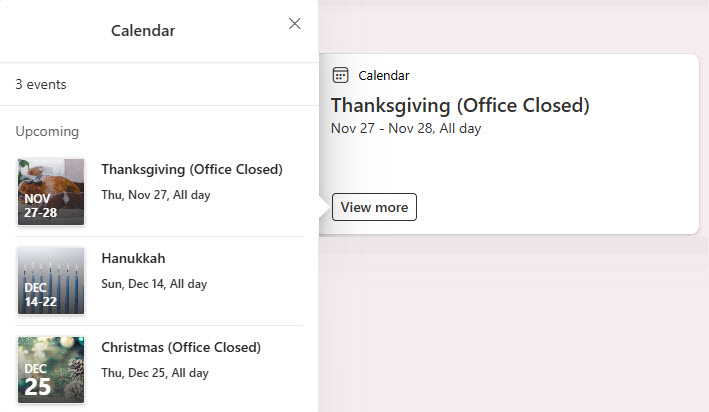
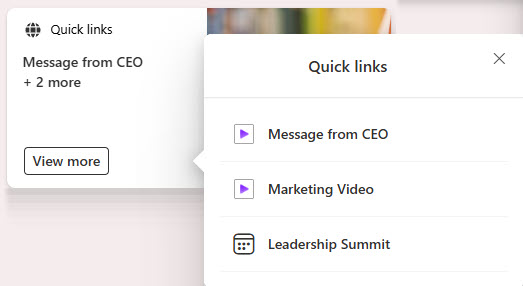
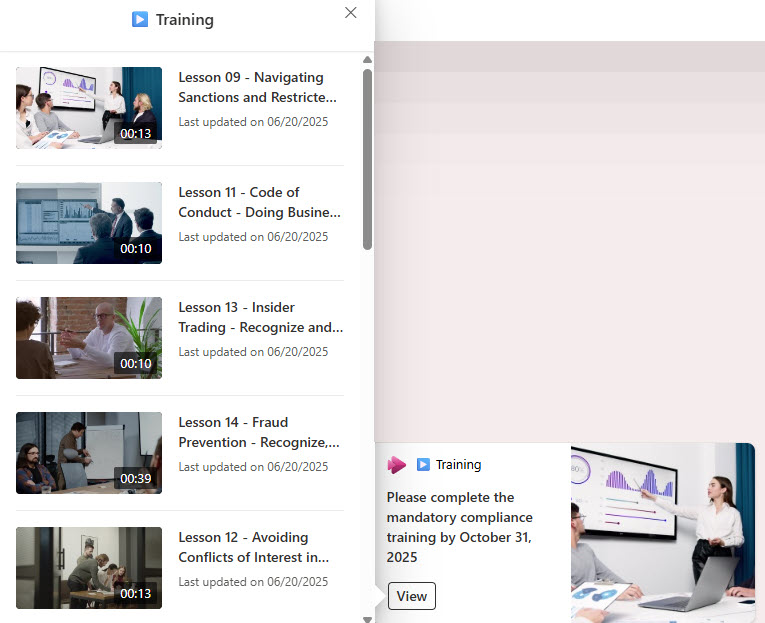
- Card types: Action cards (Approvals, Assigned tasks from Planner, Shifts, Teams app), content cards (News, Events, Folder, OneDrive, My Sites, Quick links, Stream playlist, Web link), the People card, and learning and Viva cards (Courses, Assignments, Viva Learning, Viva Pulse).
- Custom cards: design your own with the Card Designer, or use partner and custom-built cards deployed through your organization’s app catalog.
Per card:
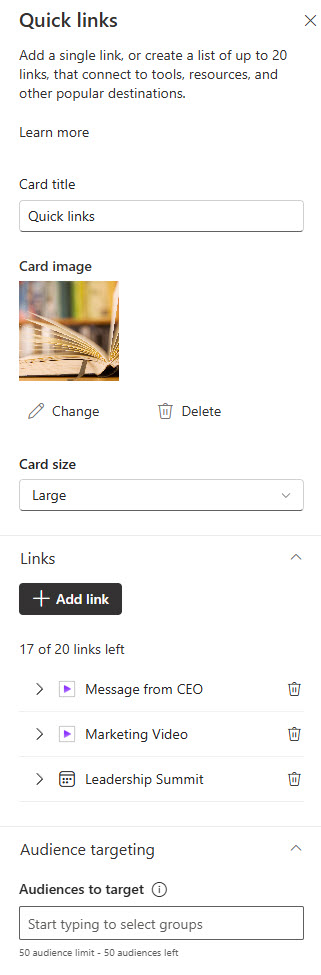
- Card properties: label, icon, image, size (medium or large), and link, depending on the card type.
- Audience targeting: show each card only to specific groups or roles.
- Manage Dashboard: the dashboard editing flow where you add, remove, and reorder cards, then publish or republish.
Limits and Nuances
- The web part displays the site’s published dashboard: to add, remove, or reorder cards you edit the dashboard itself, not the web part.
- Keep the dashboard to about 20 cards: Microsoft’s recommended maximum for the best viewing experience.
- The web part hides itself completely when a viewer has no cards to see: if every card is audience-targeted away from someone, that person sees no dashboard at all.
- Dashboard edits can take several minutes to appear in the web part: an update may not show instantly.
- A vertical section is the recommended placement: though the web part also works in one, two, and three column sections.
- Cards come in medium and large sizes: some card buttons only appear at large size; Assigned tasks, for example, shows Open Planner on large cards only.
- Colored section backgrounds are supported: cards automatically render in a contrasting color against the section background.
Dashboard vs. the Alternatives
- Dashboard vs. Quick Links: Quick Links is static navigation; Dashboard cards are interactive and can show live, personalized content like pending approvals and assigned tasks.
- Dashboard vs. separate web parts (News, Events, People): individual web parts give more layout control across the page; the Dashboard packs many sources into one compact, audience-targeted card stack.
- Dashboard vs. Viva Connections in Teams: same dashboard, two front doors; the web part shows it on SharePoint pages, while Viva Connections shows it inside Teams and on mobile.
- Dashboard vs. Power BI: this is not a reporting dashboard; for charts and data visuals, embed a Power BI report instead.
Common Questions About the Dashboard Web Part
What is the Dashboard web part in SharePoint?
It is a web part that displays a dashboard of interactive cards on a SharePoint page. Cards surface things like approvals, assigned tasks, news, events, shifts, and people lookup, and clicking a card takes you to the task or content. The dashboard itself comes from Viva Connections, so the same set of cards can also appear in Teams and on mobile.
Can different people see different cards on the same dashboard?
Yes – that is the headline feature. Each card supports audience targeting, so an HR card can show only to HR and a Shifts card only to frontline workers. One thing to know: if every card is targeted away from a viewer, the entire web part hides itself for that person, so the page looks like the dashboard was never added.
How do I change the cards shown in the Dashboard web part?
You edit the dashboard, not the web part. The web part automatically shows the cards from your site’s published dashboard – its own settings are limited to the title and how many cards display. To add, remove, reorder, or retarget cards, open the dashboard editing experience, make your changes, and republish. Allow a few minutes for edits to appear in the web part.
How many cards can a dashboard have?
Microsoft recommends keeping a dashboard to about 20 cards for the best viewing experience. On the page, the web part has its own slider for the maximum number of cards to display at once – when there are more, a See all link appears and opens the full dashboard view.
Which SharePoint sites can use the Dashboard web part?
The Dashboard web part is available on home sites, team sites, and communication sites, so any department or project team can build its own card-based dashboard. The web part always shows the dashboard created and published on the site where the page lives.
Is the Dashboard web part the same as a Power BI dashboard?
No. Despite the name, it is not a reporting or analytics dashboard – cards link to tasks, tools, and content rather than charts. If you need data visuals, embed a Power BI report instead. The dashboard examples on LookBook 365 use this exact web part with a custom theme – the only way Greg Zelfond builds – so you can see real card layouts in action. Dashboard Web Part embedded on a SharePoint Page Dashboard Web Part News Card Example Dashboard Web Part People Card Example Dashboard Web Part Configuration Dashboard Web Part Card Configuration