Assets (Tracker)


Overview
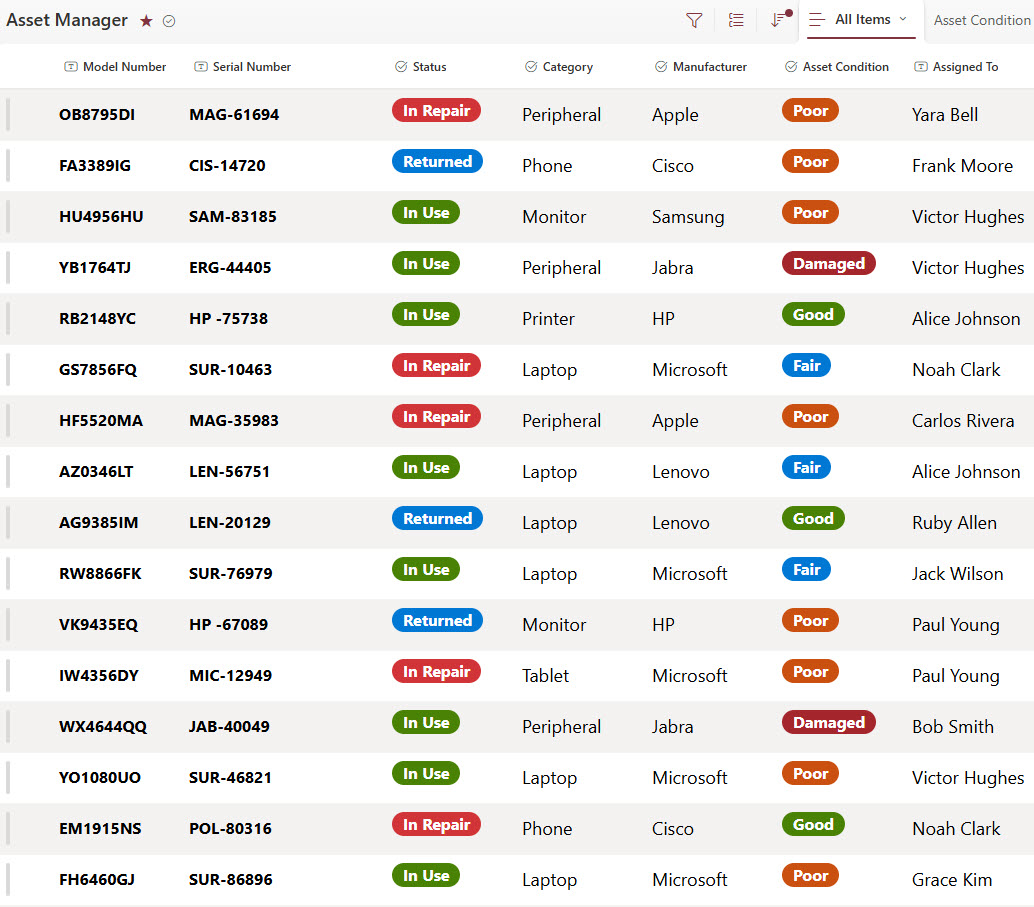
- Custom Columns: Capture key info like asset type, serial number, purchase date, assigned employee, location, and return deadline
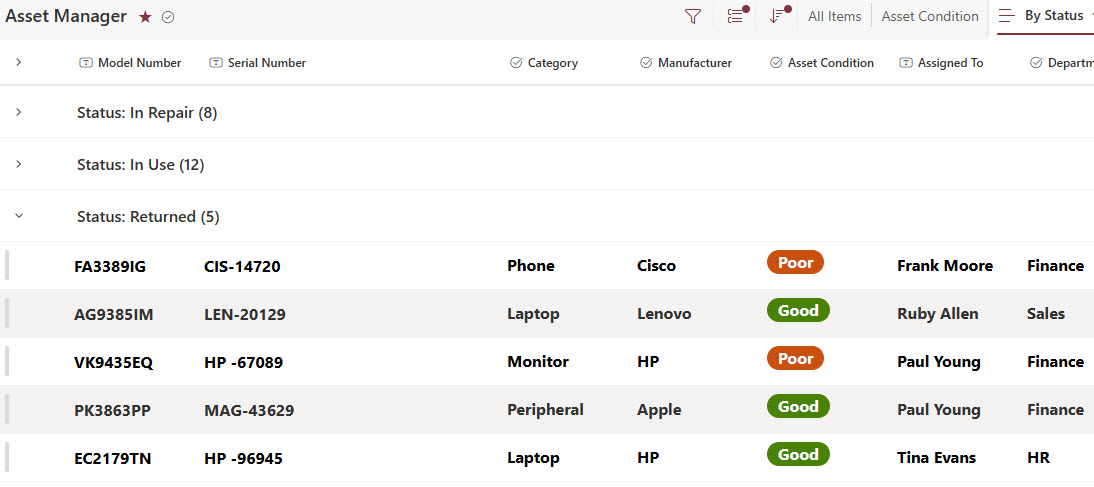
- Status Indicators: Use color-coding or icons to visually highlight assets that are assigned, available, in repair, or overdue
- Employee Lookup: Connect assets to people using the built-in People column for fast tracking and accountability
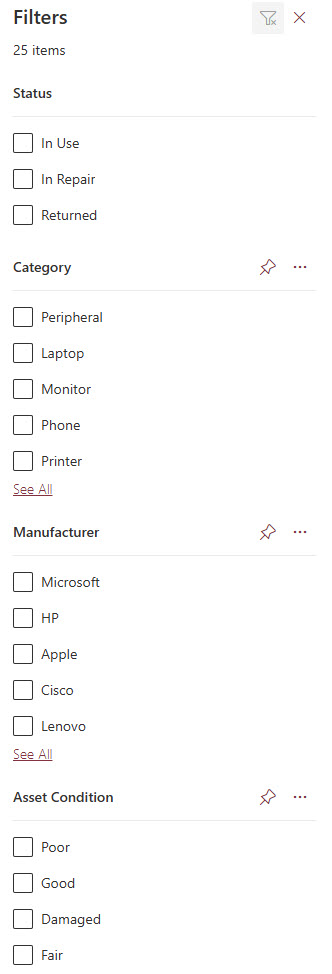
- Filterable & Searchable: Quickly sort by asset type, user, status, or department to find exactly what you need
- Audit-Ready Logs: Keep a full history of asset assignments, edits, and status changes – perfect for compliance or finance audits
- 100% Out-of-the-Box: Built entirely with SharePoint Lists – no extra software, no custom code, easy to maintain
Benefits
- Centralized Tracking: Know what you own, who has it, and where it is – all in one place
- Simplifies Offboarding: Easily identify what assets need to be returned when employees leave
- Improves Responsibility: Keeps everyone accountable with a clear digital trail of asset assignments
- Supports Inventory Planning: Helps IT and operations teams budget, replenish, and avoid over-purchasing
- Flexible & Scalable: Works just as well for a small office or a global enterprise managing thousands of items
Common Questions About This Asset Management Tracker
What is this Asset Management Tracker built with?
The Asset Management Tracker is built entirely in Microsoft Lists, the tracking app included with Microsoft 365, using custom columns, color-coded status indicators, and the built-in People column to connect assets to employees. There is no custom code and there are no third-party tools. It is the kind of clean, collaborative tracker Greg Zelfond builds for IT and operations teams.
What’s included in the Asset Management Tracker?
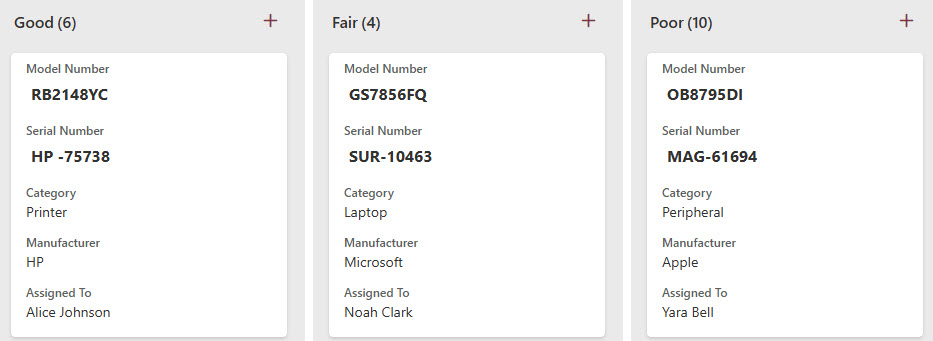
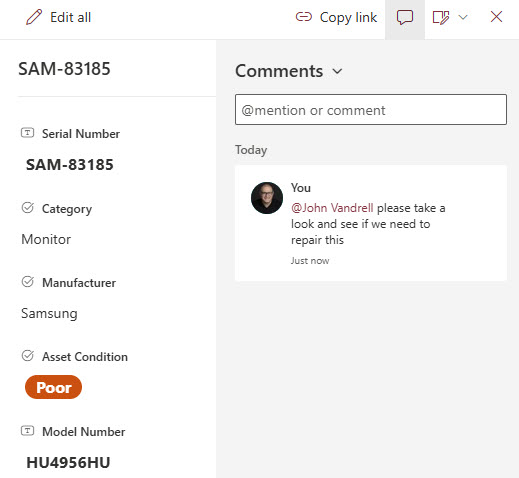
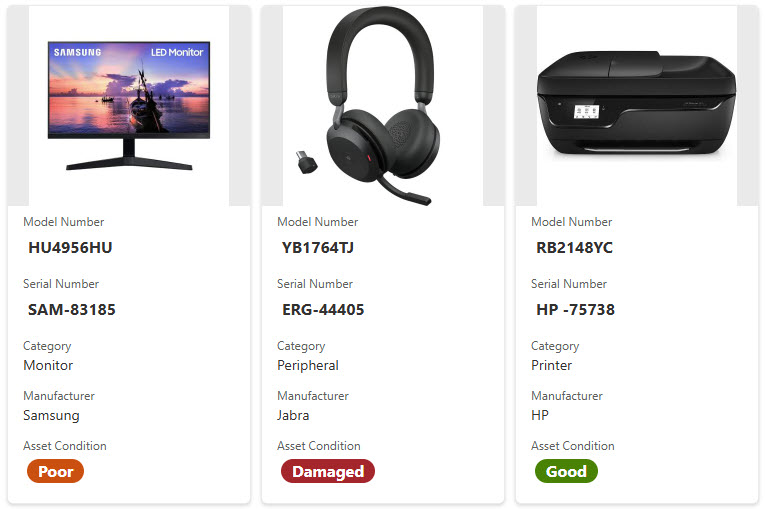
The tracker captures key details for every asset – type, serial number, purchase date, assigned employee, location, and return deadline – with status indicators that highlight assets that are assigned, available, in repair, or overdue. The design includes a grid view, a view grouped by status, a card view grouped by asset condition, a gallery view, filtering, and entry editing with comments.
Does this design use any custom code or third-party tools?
No. The tracker is built entirely with Microsoft Lists, which is included with most Microsoft 365 business and enterprise plans – no extra software, no custom code, and no third-party add-ons. That keeps it stable, secure, and easy to maintain, with your full asset history stored safely inside your Microsoft 365 environment. Out-of-the-box is the only way Greg builds.
Can this tracker be customized for our organization?
Absolutely. The asset types, columns, statuses, and views can all be tailored to what your organization actually manages – laptops and phones, vehicles, lab equipment, furniture, or software licenses. You can add fields for warranty dates, cost centers, or asset condition. Greg adapts the structure to your real inventory and assignment process, whether you are a small office or a global enterprise.
What views does the Asset Management Tracker include?
The design showcases multiple ways to work with the same inventory: a grid view for fast scanning and editing, a view grouped by status, a card view grouped by asset condition, and a gallery view. Filtering narrows the list by asset type, user, status, or department, and audit-ready logs keep a full history of assignments, edits, and status changes for compliance or finance audits.
Can Greg build this tracker for our organization?
Yes – this is exactly the kind of work Greg Zelfond does. As an independent SharePoint and Microsoft 365 consultant and Microsoft MVP, he designs and builds trackers like this one in Microsoft Lists, SharePoint, Loop, and Planner, tailored to the way your organization tracks and assigns its equipment. Reach out through the contact page to get started.